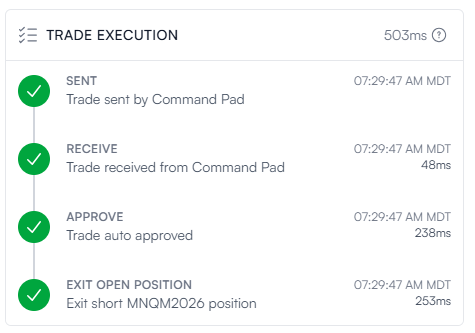
When a trade signal fires, the time between that moment and the order being filled at your broker is the sum of four sequential phases. Only three of them are within TradersPost's control. The first, and often the largest, is the time it takes the signal to travel from its source to us.
This page breaks down each phase, what drives it, and how to measure it for your own setup.
The Four Phases
1. Signal
The Signal phase is the time it takes for a trade alert to travel from its source to TradersPost. This phase is outside our control and varies significantly based on which signal source you use and how far it is from our primary server in Virginia, USA.
Typical times by source:
- TradingView: 800ms to 1.5 seconds, sometimes longer
- TrendSpider: 800ms to 1.5 seconds
- Command Pad: under 100ms, depending on your location
- Custom webhook from a server near our infrastructure: as low as 80ms
The closer your signal source is to Virginia, both physically and in terms of network hops, the faster we receive the alert. Recent measurements show webhooks arriving at TradersPost in roughly 80ms on average when sent from well-located infrastructure.
If you are seeing what feels like lag in your entry execution, this phase is the most common cause.
2. Planning
Before approving the order, TradersPost queries the broker for the information needed to construct it accurately. Depending on the strategy and order type, this can include the current market quote, available buying power, and any open position in the symbol.
Typical times: 100ms to 200ms, depending on the broker's API responsiveness.
3. Approval
Once a trade is planned, the trade enters an approval state.
- Auto-approved trades: nearly instant, with no meaningful latency added
- Manually approved trades: timed from arrival to the moment you physically approve by clicking the Approve button when a subscription is in Manual Submit mode
If auto-approval is enabled, this phase effectively disappears. If you require manual approval, the duration is driven entirely by your response time, and we report it as part of the trade timing so you can see exactly how long the trade waited.
4. Execution
The final phase is submitting the order to the broker.
Typical times: around 200ms - 300ms.
A Realistic Best Case
With a fast signal source, auto-approval, and a responsive broker, total time from signal to order placement looks like this:
- Signal: 80ms
- Planning: 100ms
- Approval: instant if Auto Submit is enabled
- Execution: 200ms
- Total: 380ms
This is the low end. Setups using TradingView or TrendSpider as the signal source will spend the majority of total time in the Signal phase, before the request ever reaches us. In those cases, the three phases TradersPost controls typically account for 300ms to 500ms of the total, while the Signal phase accounts for 800ms to 1.5 seconds or more.
Measuring Your Own Signal Speed
We strongly recommend including a time property in your webhook payload, formatted in ISO8601 with microsecond precision and a timezone offset:
"time": "2026-04-28T07:41:58.799-06:00"
When this field is present, we can calculate the elapsed time between when the signal was generated at the source and when it arrived at TradersPost. This is how we are able to report that TradingView signals typically take 800ms to 1.5 seconds, and it is the most accurate way for you to verify the speed of any signal source you are using.
If your signal source does not natively send a time field, most platforms allow you to add one through a custom payload or alert template. Consult your signal source's webhook documentation for the specific syntax.
The Trade Execution Panel
Every signal in your TradersPost dashboard includes a Trade Execution panel that shows the time spent in each phase, from the moment the signal was sent to the moment the order was placed with the broker. The panel reports each step with its timestamp and the elapsed milliseconds, along with the total time for the trade.
Use the Trade Execution panel to:
- Verify the speed of your signal source against the broker's response time
- Identify whether unexpected latency is coming from the signal source, the approval phase, or the broker
- Compare brokers and signal sources directly using real data from your own account
If you consistently see high times in a specific phase, the panel makes it clear where the bottleneck is and whether it is something you can address (signal source, approval workflow) or something inherent to the broker you are trading with.
Reducing Total Time
If you want to minimize total signal-to-execution time:
- Use a fast signal source. Command Pad and custom webhooks from well-located infrastructure significantly outperform third-party platforms like TradingView and TrendSpider on the Signal phase.
- Enable auto-approval for strategies you trust, so the Approval phase does not add latency.
- Choose a responsive broker. Planning and Execution times vary across brokers, and the Trade Execution panel will show you which of yours are fastest.
- Send the
timeproperty so you can measure and verify changes you make.
For most users, the largest improvement available is reducing the Signal phase, since it is typically the longest of the four and is the one most directly within your control through your choice of signal source.