# JSON Message Template Creator

TradersPost uses [JSON messages](https://en.wikipedia.org/wiki/JSON) to receive and process trading instructions sent to a webhook URL. If you're new to JSON, don't worry, it's simply a way to structure data in a format that's both machine-readable and easy for humans to understand.

Head to the [webhooks documentation](https://docs.traderspost.io/docs/core-concepts/signals/webhooks) to see all the different types of JSON messages you can send.

## What Is JSON?

**JSON** stands for *JavaScript Object Notation*. It’s a simple, text-based format for organizing data using key/value pairs. In TradersPost, JSON allows you to send your trading signals with clear instructions that define *what to trade* and *how to trade it*.

Here’s a very simple example of a JSON message that TradersPost would use:

```json5
{
  "ticker": "NQ1!",
  "action": "buy",
  "signalPrice": 18250.5,
  "quantity": 2,
  "time": "2025-06-17T10:30:00Z"
}
```

## Required Fields

At minimum, every JSON message sent to TradersPost must include:

* **ticker** — The symbol you want to trade (e.g. `NQ1!` or `MSFT`)
* **action** — The trade action: `buy`, `sell`,  `exit`, `cancel` or `add`&#x20;

Without these two fields, TradersPost won’t know what trade to place.

## Recommended Fields

While not required, we strongly recommend also including:

* **signalPrice** — The price at the time your signal fired
* **time** — A timestamp for when the signal was generated

Providing these values helps you maintain a full record of your signal and enables TradersPost to better track execution slippage and timing.

## All Fields

See our entire [webhook documentation](https://docs.traderspost.io/docs/core-concepts/signals/webhooks) page for all the possible fields you can send in a JSON message.

## Creating and Saving JSON Message Templates

{% embed url="<https://youtu.be/vBBt2rAkVwA>" %}

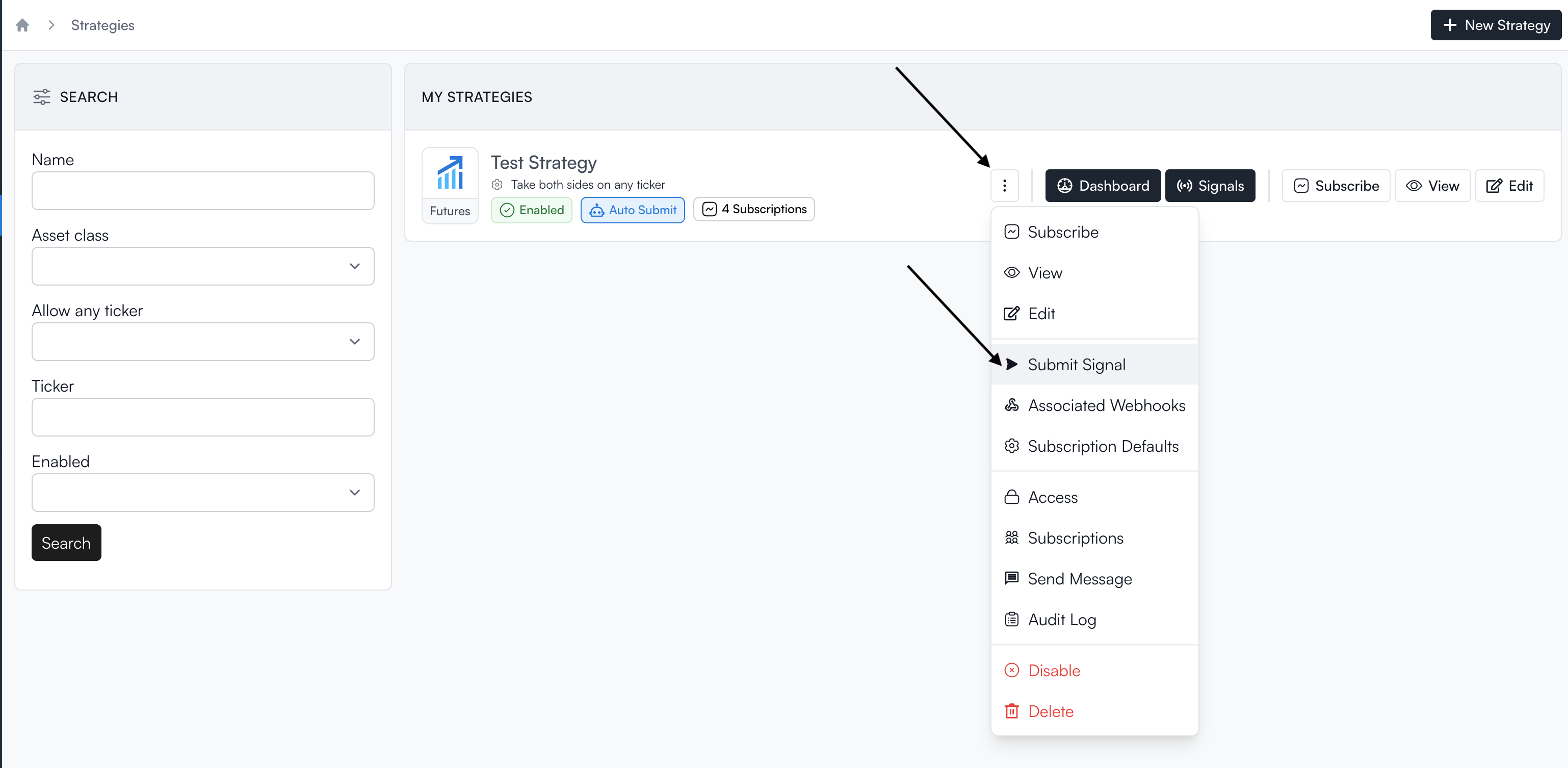
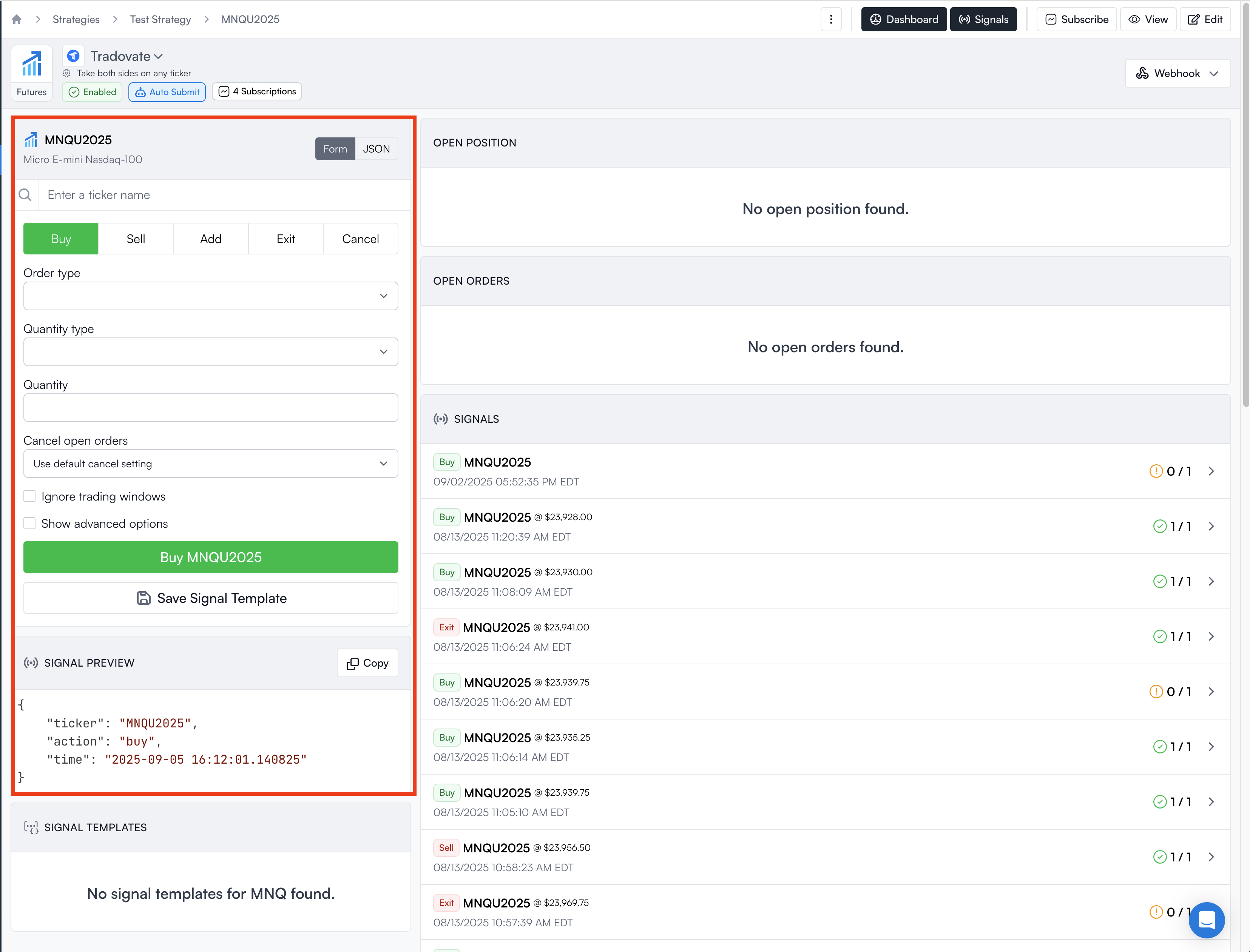
We've made JSON message creation easy with our JSON message template creator tool. It can be found on the "Submit Signal" page that is located in your [strategy dashboard](https://app.traderspost.io/app/trading/strategies). Click the ••• icon next to Dashboard and navigate to "Submit Signal" and click it.
<figure><img src="https://157925339-files.gitbook.io/~/files/v0/b/gitbook-x-prod.appspot.com/o/spaces%2FyFbMywdkChFyQlCR779Y%2Fuploads%2FjUuV2KwDGMFCKMNhxo0b%2FScreenshot%202025-09-05%20at%2012.09.28%E2%80%AFPM.png?alt=media&#x26;token=8f4a0968-e83b-4c43-a6eb-1447762d39e5" alt=""><figcaption></figcaption></figure>

The area highlighted in red is how you can build your own JSON to not only submit manual orders to your strategy subscriptions but also to create JSON Signal Templates to save and reuse later.
<figure><img src="https://157925339-files.gitbook.io/~/files/v0/b/gitbook-x-prod.appspot.com/o/spaces%2FyFbMywdkChFyQlCR779Y%2Fuploads%2FT80uLiNy2x3OsbfNR5UB%2FScreenshot%202025-09-05%20at%2012.13.39%E2%80%AFPM.png?alt=media&#x26;token=3a5df850-190c-484a-b1a7-f0e6ba7b5915" alt=""><figcaption></figcaption></figure>

Once you've selected how you want your trade to be formed, click Save Signal Template.
<figure><img src="https://157925339-files.gitbook.io/~/files/v0/b/gitbook-x-prod.appspot.com/o/spaces%2FyFbMywdkChFyQlCR779Y%2Fuploads%2Fi1hQTGdDrMeUzNs8iomD%2FScreenshot%202025-09-05%20at%2012.17.56%E2%80%AFPM.png?alt=media&#x26;token=9fb0b379-2f7c-439a-bb9b-1fc4822555ce" alt=""><figcaption></figcaption></figure>

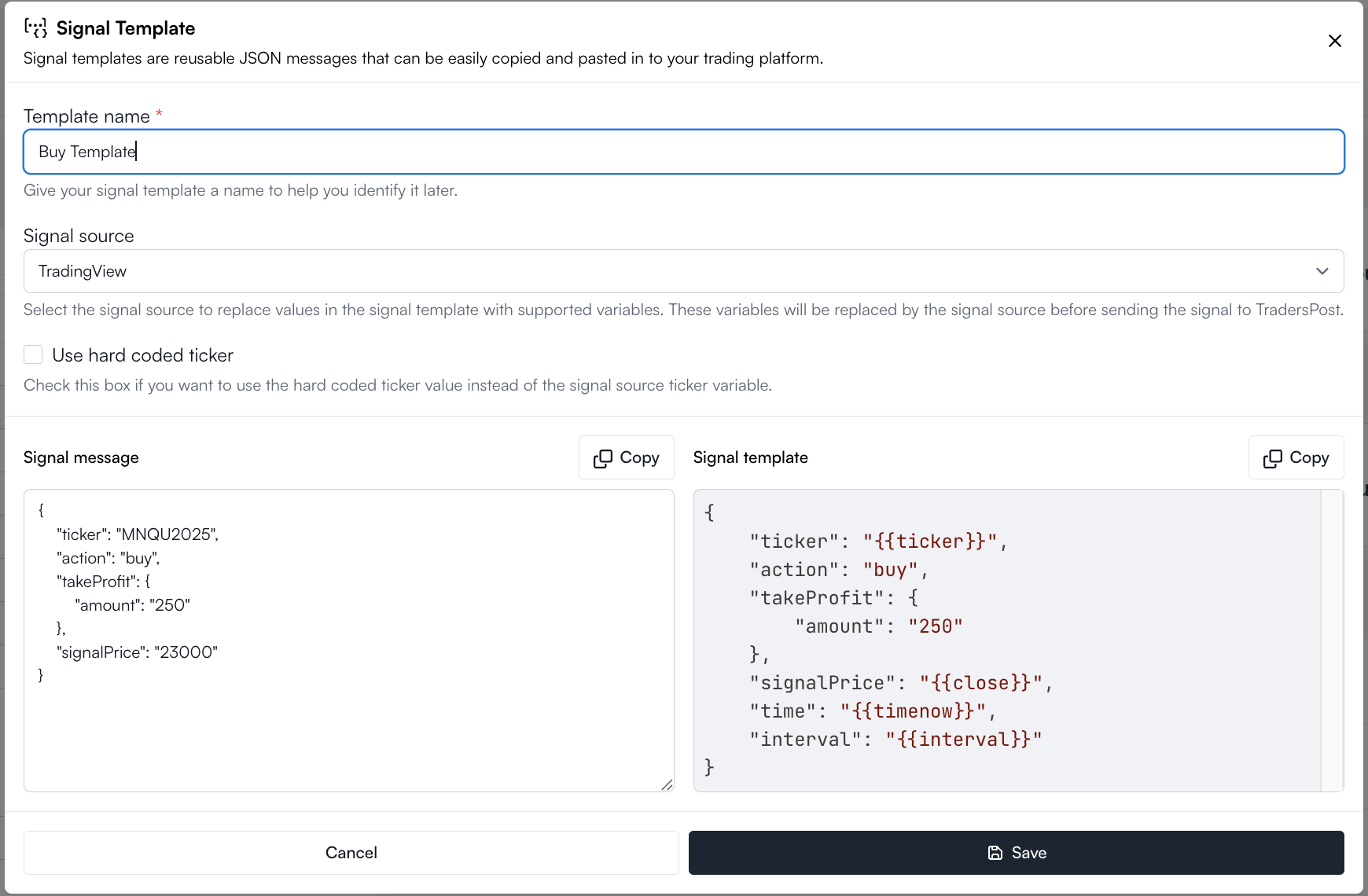
Here is a sample JSON message created for a buy entry order with a take profit of 20 points and a stop loss of 10 points.

```
{
    "ticker": "{{ticker}}",
    "action": "buy",
    "takeProfit": {
        "amount": "20"
    },
    "stopLoss": {
        "type": "stop",
        "amount": "10"
    },
    "signalPrice": "{{close}}",
    "time": "{{timenow}}",
    "interval": "{{interval}}"
}
```

Once you are finished creating your JSON, you'll choose a template name, select the signal source, and you'll then see the custom JSON message that you'll then save. Once it's saved, you'll copy and paste the signal template JSON into your alert in Tradingview (or your signal source if different than Tradingview).
<figure><img src="https://157925339-files.gitbook.io/~/files/v0/b/gitbook-x-prod.appspot.com/o/spaces%2FyFbMywdkChFyQlCR779Y%2Fuploads%2F9PiV8oNw18YSlBewZbi5%2FScreenshot%202025-09-10%20at%2010.23.01%E2%80%AFPM.png?alt=media&#x26;token=376767c6-83b2-453a-9078-4502c0cfe6b5" alt="" width="563"><figcaption></figcaption></figure>

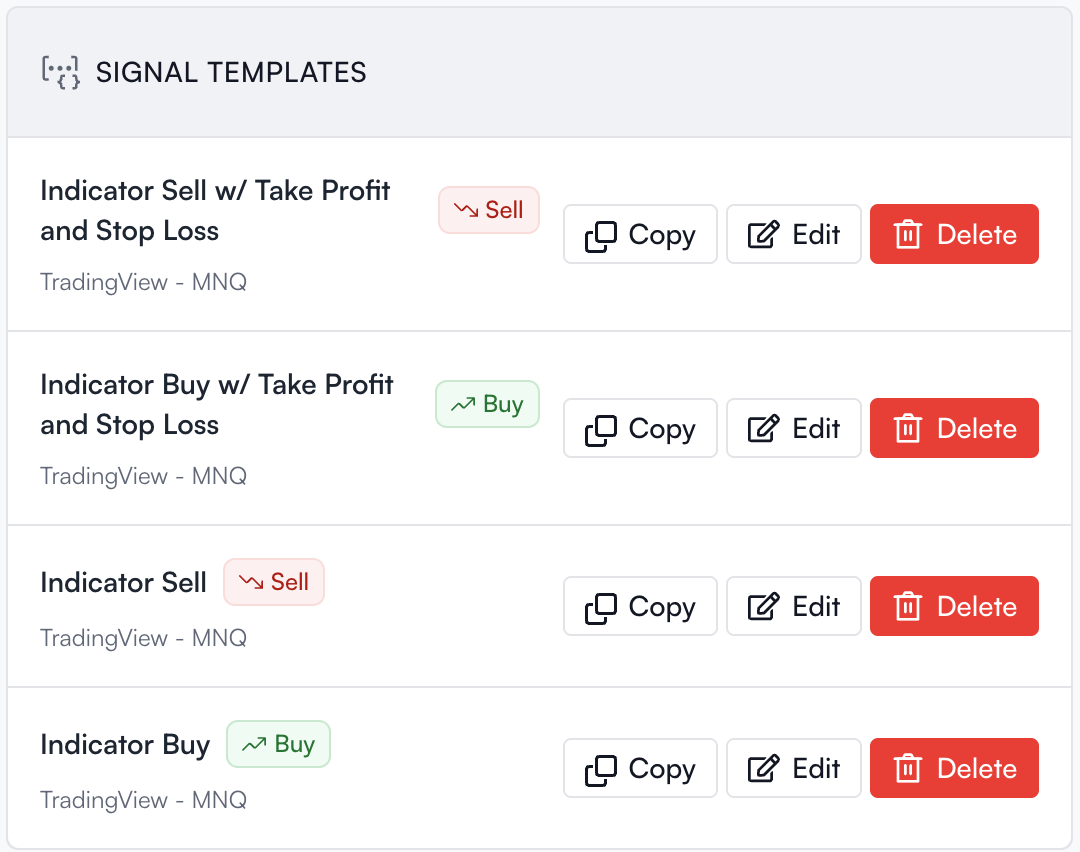
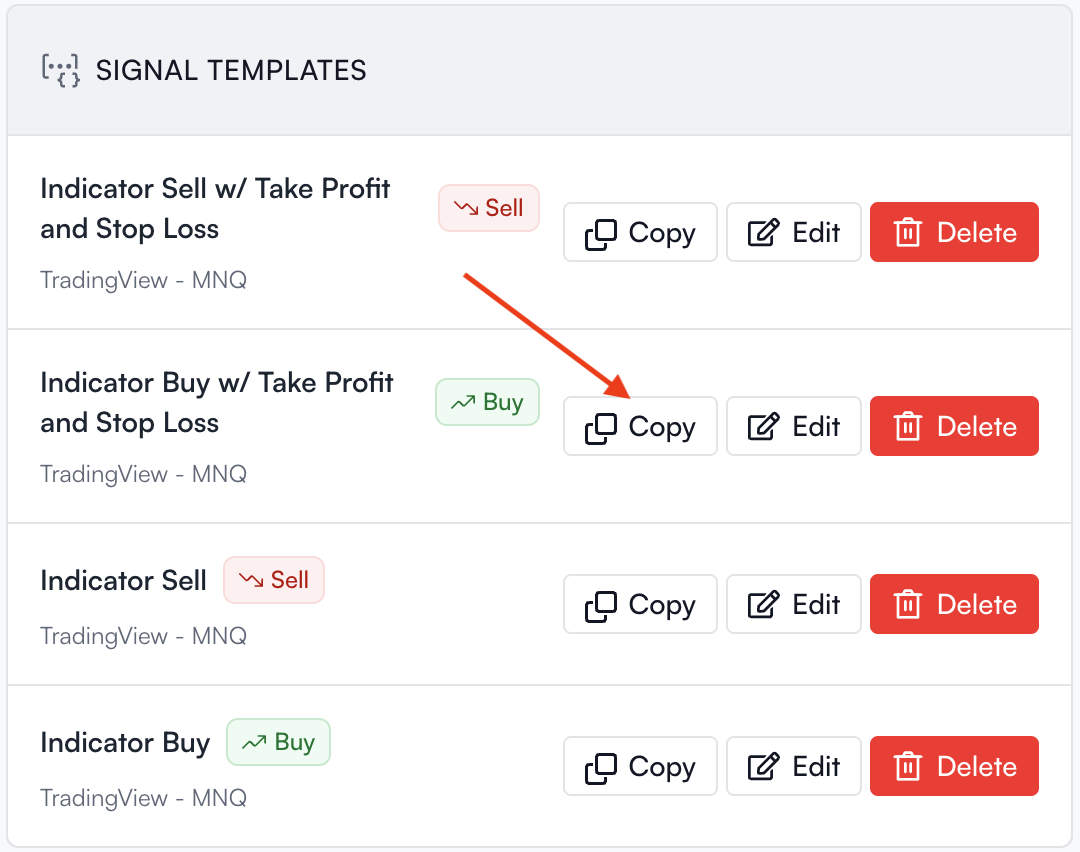
Saved signal templates will appear at the bottom of the Submit Signal page where you can easily copy, edit, and delete them.

## Using a Saved JSON Template In Your Alert

{% embed url="<https://youtu.be/u3tPkFWN6xk>" %}

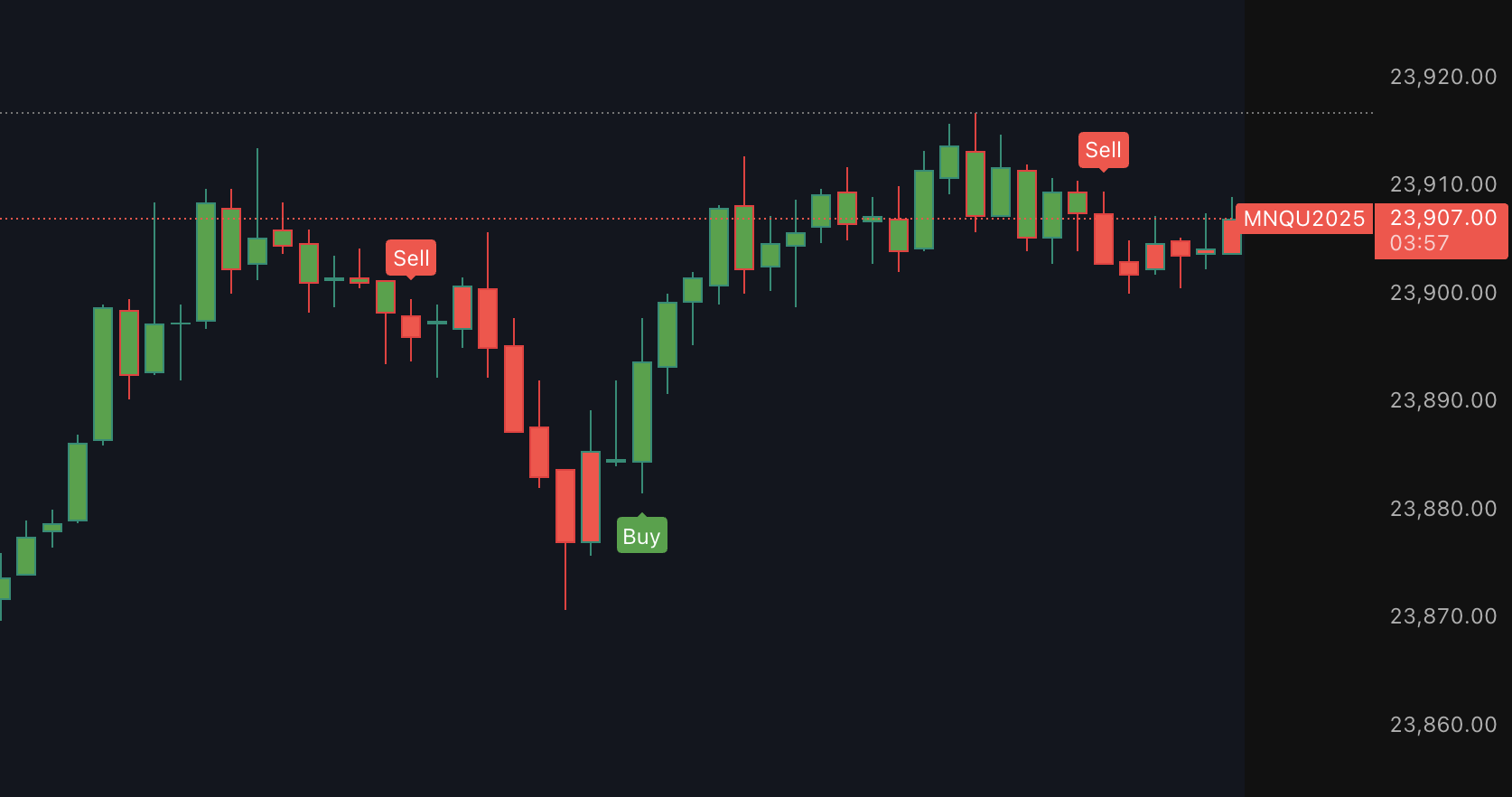
Once you've saved your reusable JSON templates it's time to create your alerts. This example will be for a Tradingview indicator called [UT Bot Alerts](https://www.tradingview.com/v/n8ss8BID/). For this indicator we'll need both a **buy** and a **sell** alert.

<figure><img src="https://157925339-files.gitbook.io/~/files/v0/b/gitbook-x-prod.appspot.com/o/spaces%2FyFbMywdkChFyQlCR779Y%2Fuploads%2FR2gWUyegupyjPw9JxC3q%2FScreenshot%202025-09-10%20at%2010.26.04%E2%80%AFPM.png?alt=media&#x26;token=9490740d-d4f1-4278-8565-917bb41998ea" alt=""><figcaption><p>Screenshot of the UT Bot Alerts indicator with Buys and Sells</p></figcaption></figure>

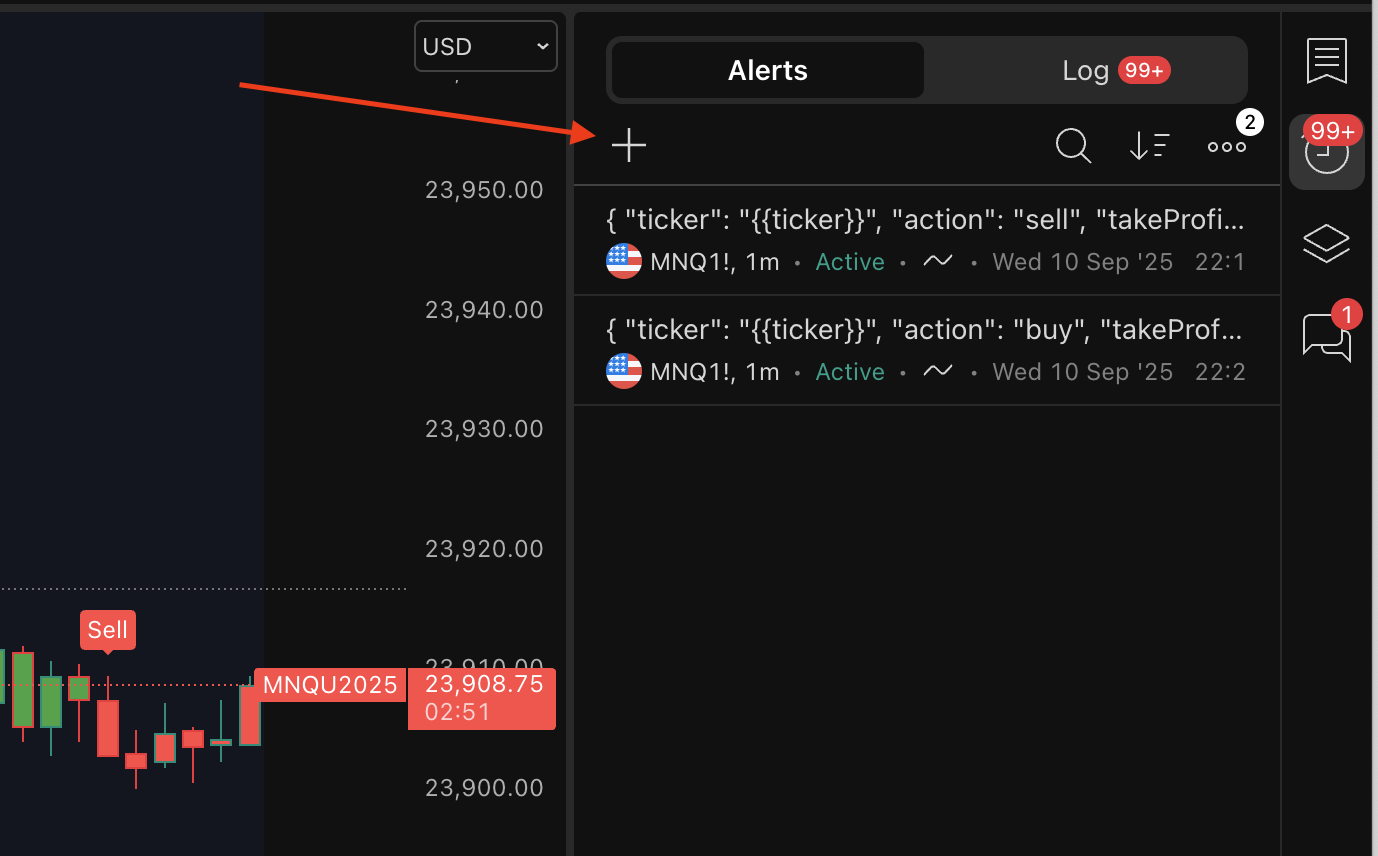
First, we'll need to add a new alert. Click the + icon in the "Alerts" area (in the clock tab on the right side of your Tradingview window)
<figure><img src="https://157925339-files.gitbook.io/~/files/v0/b/gitbook-x-prod.appspot.com/o/spaces%2FyFbMywdkChFyQlCR779Y%2Fuploads%2FXFkEDvj6upE6IQsCqpSa%2FScreenshot%202025-09-10%20at%2010.27.09%E2%80%AFPM.png?alt=media&#x26;token=6ef13eb3-2972-4cca-a7db-84469ced885b" alt=""><figcaption></figcaption></figure>

<figure><img src="https://157925339-files.gitbook.io/~/files/v0/b/gitbook-x-prod.appspot.com/o/spaces%2FyFbMywdkChFyQlCR779Y%2Fuploads%2FTsOCxZGdUdm684iwjV4C%2FScreenshot%202025-09-10%20at%2010.29.07%E2%80%AFPM.png?alt=media&#x26;token=cd6aaf13-ea5b-40cd-a637-da5e7d1947f8" alt="" width="375"><figcaption><p>UT Bot Alerts "Buy" Signal Settings Screenshot</p></figcaption></figure>

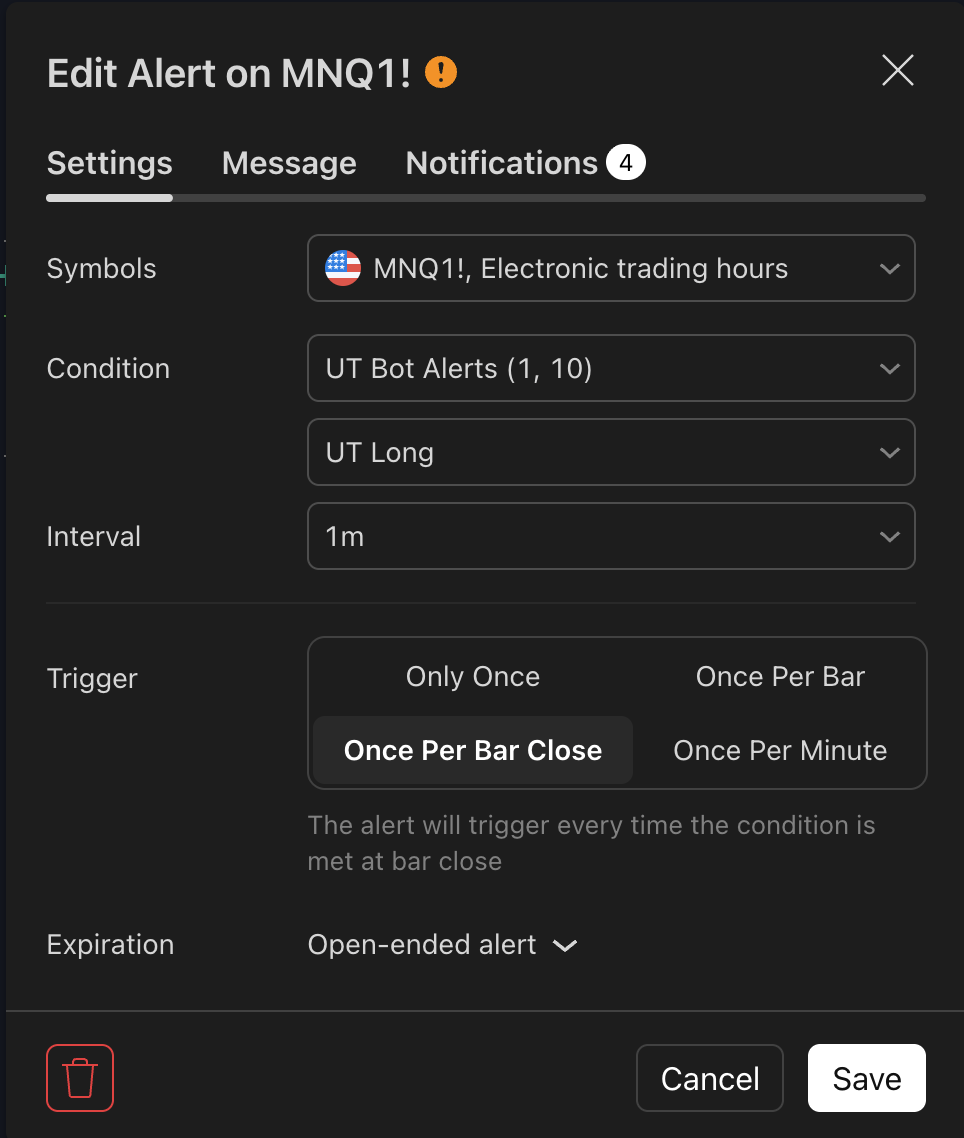
This first alert will be for the <mark style="background-color:green;">**buy**</mark>. We'll choose the indicator in the condition dropdown (in this example: UT Bot Alerts), then the long (<mark style="background-color:green;">**buy**</mark>) condition, once per bar close, and make sure our expiration is open ended or as far out as we can choose if you don't have a plan which supports open ended alerts.
<figure><img src="https://157925339-files.gitbook.io/~/files/v0/b/gitbook-x-prod.appspot.com/o/spaces%2FyFbMywdkChFyQlCR779Y%2Fuploads%2F0P5a4eZb2KN9j9vZSjie%2FScreenshot%202025-09-10%20at%2010.33.04%E2%80%AFPM.png?alt=media&#x26;token=8a63694a-f2e9-489d-8595-67b328e032b9" alt="" width="563"><figcaption></figcaption></figure>

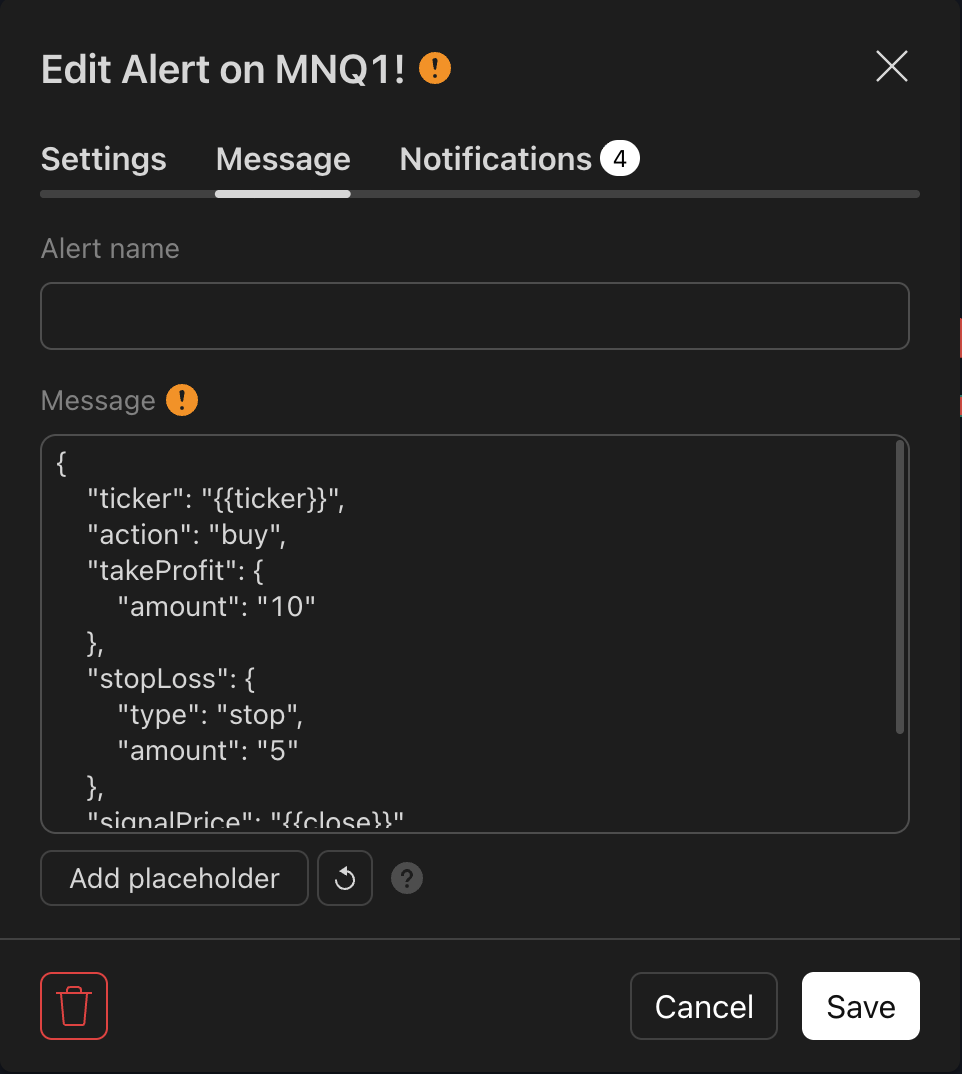
We'll copy the previously made JSON template for the Indicator <mark style="background-color:green;">**Buy**</mark> w/ Take Profit and Stop Loss and paste it into the Message tab in our <mark style="background-color:green;">**buy**</mark> alert.

<figure><img src="https://157925339-files.gitbook.io/~/files/v0/b/gitbook-x-prod.appspot.com/o/spaces%2FyFbMywdkChFyQlCR779Y%2Fuploads%2FAS5wysSdxrVmsSxA7OC2%2FScreenshot%202025-09-10%20at%2010.31.31%E2%80%AFPM.png?alt=media&#x26;token=5ca0083e-c1f5-4ccf-8bb1-f1c9740c2682" alt="" width="375"><figcaption><p>The JSON message pasted into the Message tab</p></figcaption></figure>

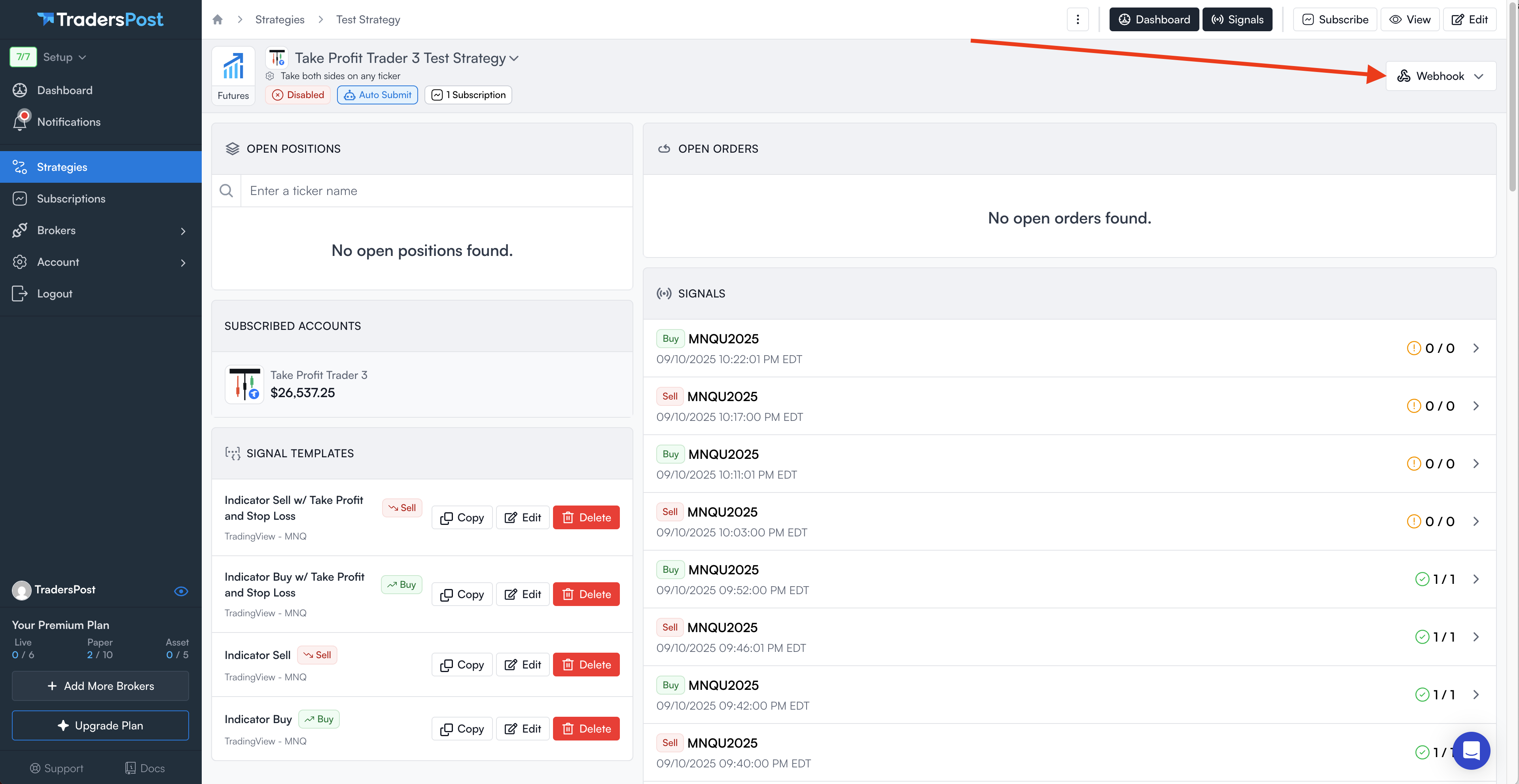
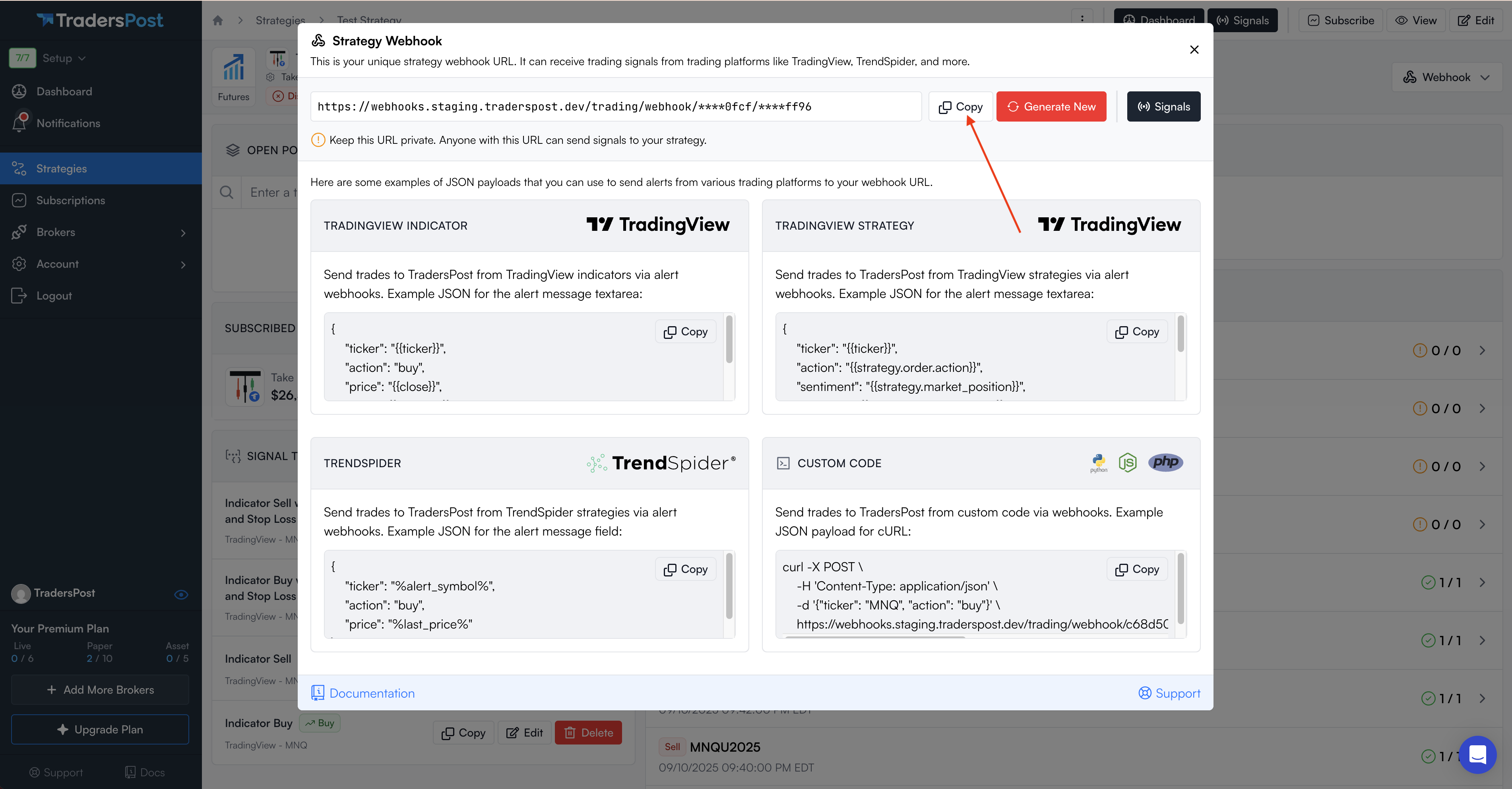
Finally, we'll go to our TradersPost strategy dashboard, click the Webhook button, and copy the webhook URL to paste into the third tab of our <mark style="background-color:green;">**buy**</mark> alert.

<figure><img src="https://157925339-files.gitbook.io/~/files/v0/b/gitbook-x-prod.appspot.com/o/spaces%2FyFbMywdkChFyQlCR779Y%2Fuploads%2FeYoIfPuV8gEBu3N4FR42%2FScreenshot%202025-09-10%20at%2010.36.33%E2%80%AFPM.png?alt=media&#x26;token=ddbedae8-be39-47a0-b968-434deeabd7f5" alt=""><figcaption></figcaption></figure>

We'll click Copy on the Strategy Webhook module that pops up.
<figure><img src="https://157925339-files.gitbook.io/~/files/v0/b/gitbook-x-prod.appspot.com/o/spaces%2FyFbMywdkChFyQlCR779Y%2Fuploads%2F0KsSRdeTPm1Ijz2quASA%2FScreenshot%202025-09-10%20at%2010.38.14%E2%80%AFPM.png?alt=media&#x26;token=4b9b3066-6b9c-438b-a8bb-1e7f898d5bba" alt=""><figcaption></figcaption></figure>

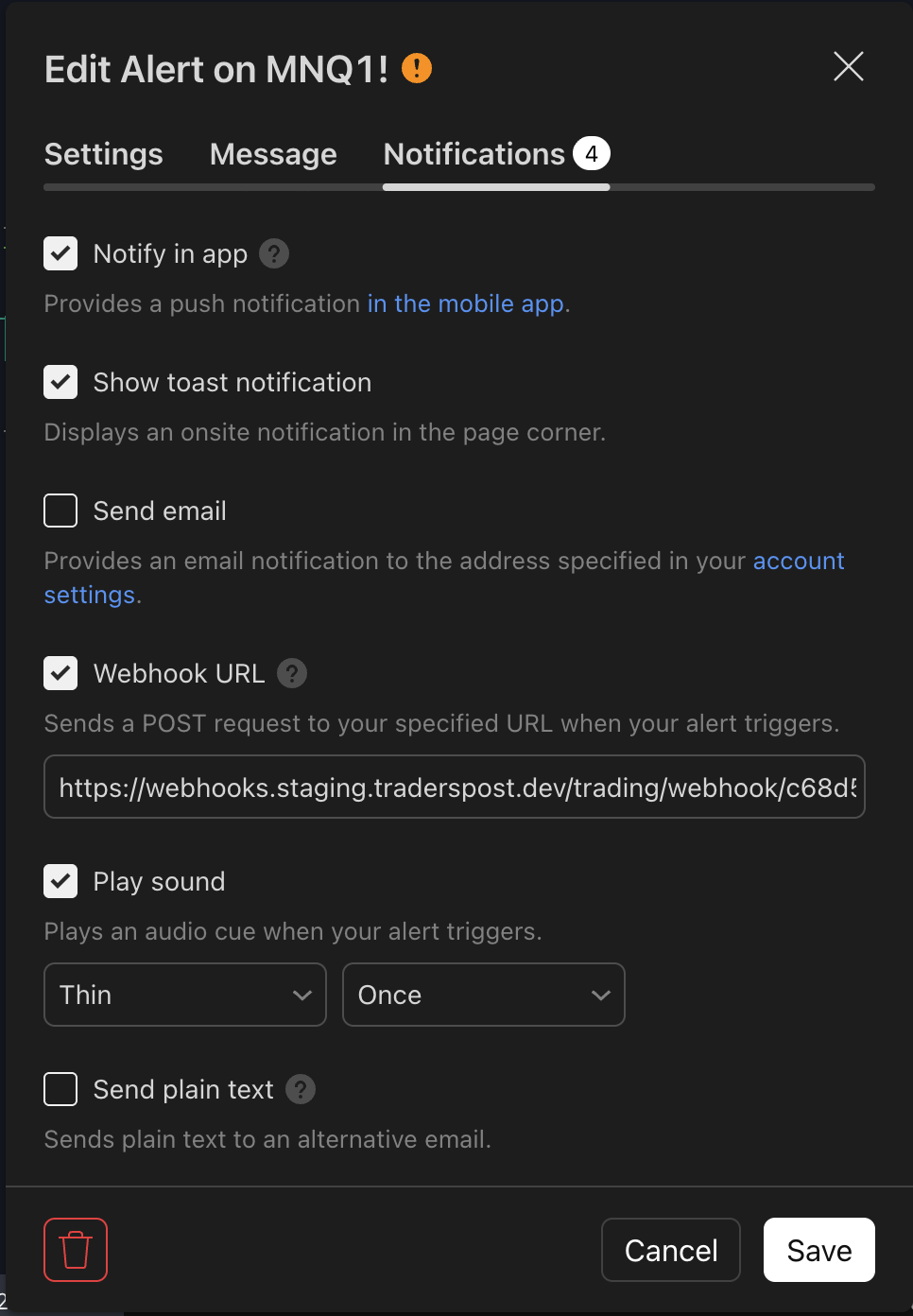
Finally, we'll paste that into the Notifications tab on our <mark style="background-color:green;">**buy**</mark> alert in the Webhook URL section.

<figure><img src="https://157925339-files.gitbook.io/~/files/v0/b/gitbook-x-prod.appspot.com/o/spaces%2FyFbMywdkChFyQlCR779Y%2Fuploads%2F7QLJ59KLgkpN5KZYz7gV%2FScreenshot%202025-09-10%20at%2010.35.35%E2%80%AFPM.png?alt=media&#x26;token=05d49ffc-745c-4c63-814c-951e646f3246" alt="" width="375"><figcaption><p>The webhook URL is checked and pasted in</p></figcaption></figure>

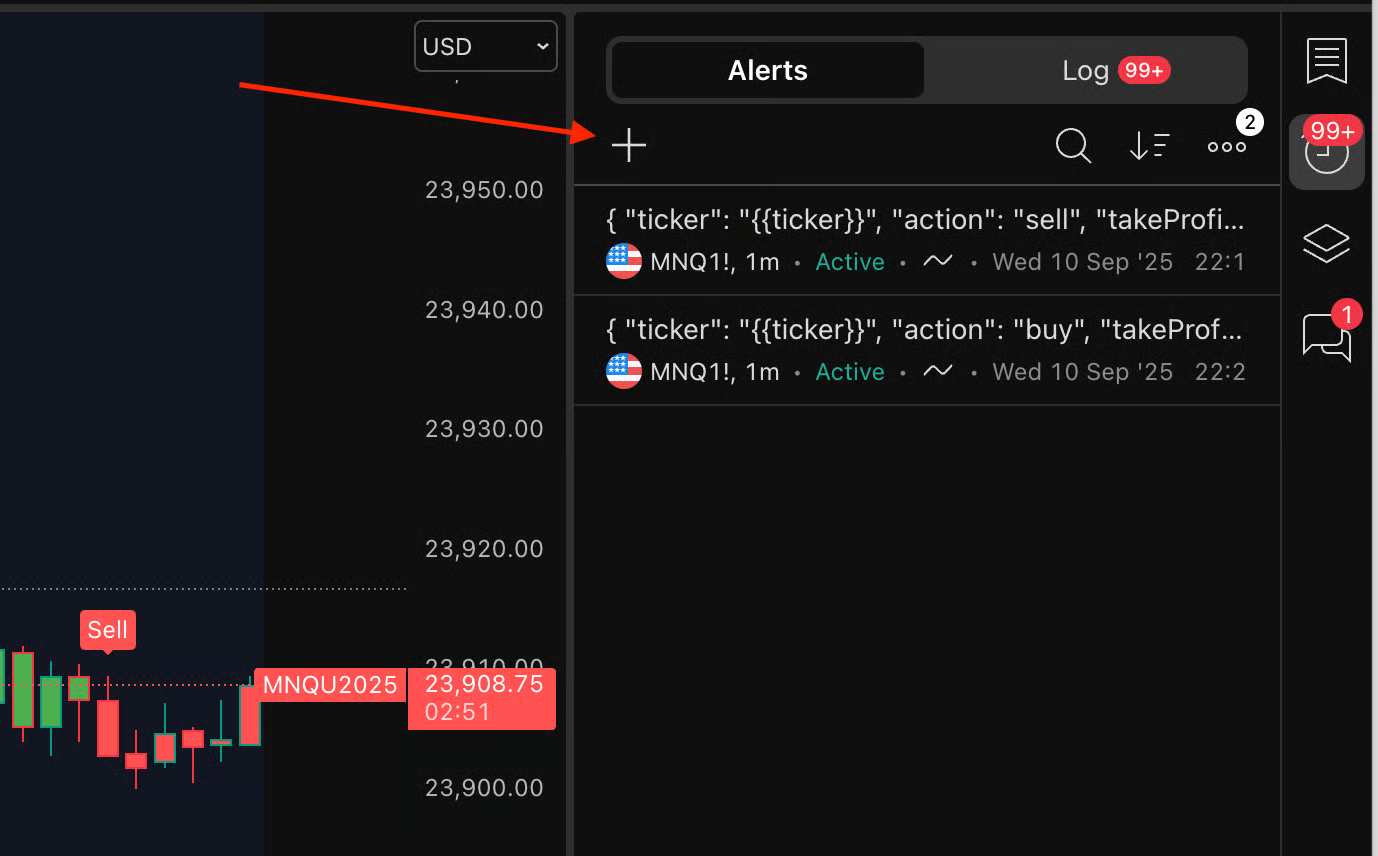
Last step is to repeat this process for the <mark style="background-color:red;">**sell**</mark> alert. First, we click the + button again.
<figure><img src="https://157925339-files.gitbook.io/~/files/v0/b/gitbook-x-prod.appspot.com/o/spaces%2FyFbMywdkChFyQlCR779Y%2Fuploads%2Fc1F8M0EMCGNHUBDYHEl3%2Fimage.png?alt=media&#x26;token=2fb20722-b050-470e-9ea1-a7fcc8e80689" alt=""><figcaption></figcaption></figure>

<figure><img src="https://157925339-files.gitbook.io/~/files/v0/b/gitbook-x-prod.appspot.com/o/spaces%2FyFbMywdkChFyQlCR779Y%2Fuploads%2FCs8h3UMOhoupeS74lEEr%2FScreenshot%202025-09-10%20at%2010.41.51%E2%80%AFPM.png?alt=media&#x26;token=25009d39-5abc-4290-9747-0b11d8351071" alt="" width="375"><figcaption><p>UT Bot Alerts "Sell" Signal Settings Screenshot</p></figcaption></figure>

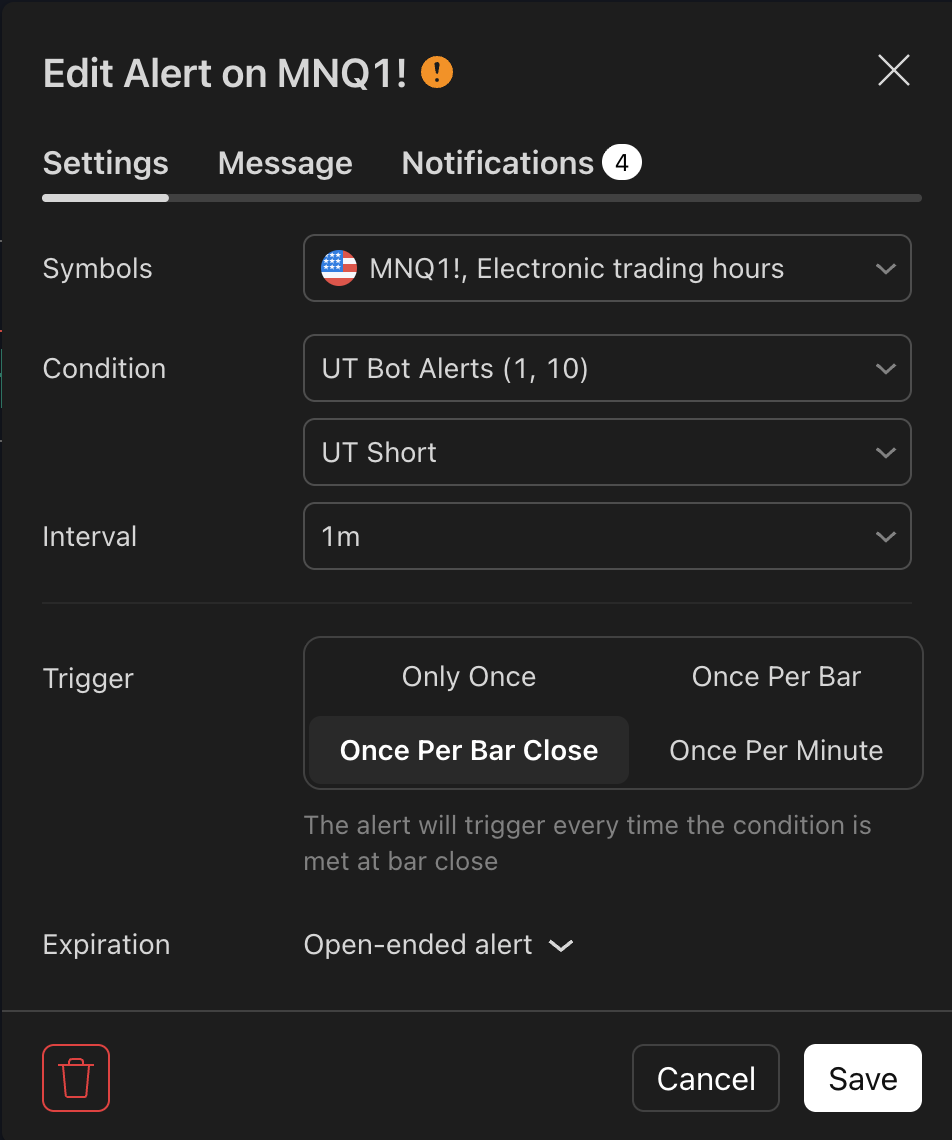
We'll choose the indicator in the condition dropdown (in this example: UT Bot Alerts), then the short (<mark style="background-color:red;">**sell**</mark>) condition, once per bar close, and make sure our expiration is open ended or as far out as we can choose if you don't have a plan which supports open ended alerts.
<figure><img src="https://157925339-files.gitbook.io/~/files/v0/b/gitbook-x-prod.appspot.com/o/spaces%2FyFbMywdkChFyQlCR779Y%2Fuploads%2FDI3opAIGIuXLv2veAQ7Y%2FScreenshot%202025-09-10%20at%2010.44.16%E2%80%AFPM.png?alt=media&#x26;token=4cbddd1a-94eb-460e-bf10-d9a22c8efbc8" alt="" width="563"><figcaption></figcaption></figure>

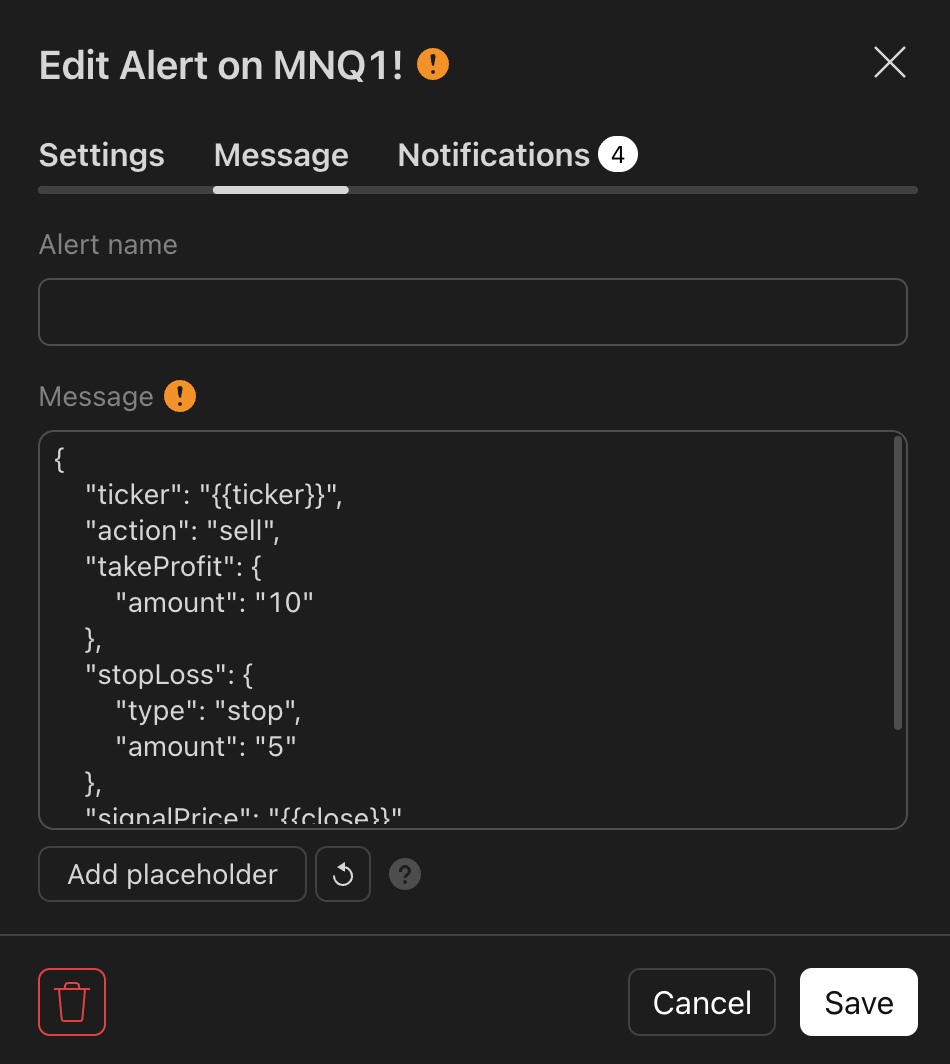
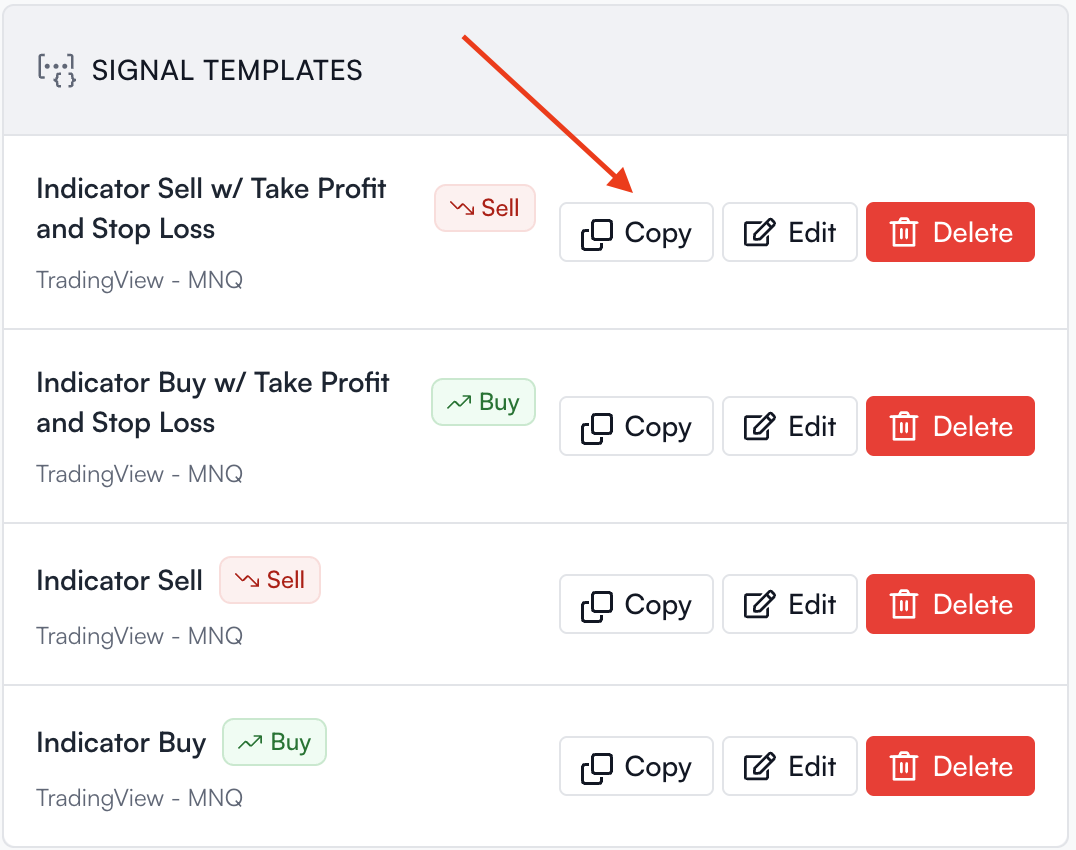
We'll copy the previously made JSON template for the Indicator <mark style="background-color:red;">**Sell**</mark> w/ Take Profit and Stop Loss and paste it into the Message tab in our <mark style="background-color:red;">**sell**</mark> alert.

<figure><img src="https://157925339-files.gitbook.io/~/files/v0/b/gitbook-x-prod.appspot.com/o/spaces%2FyFbMywdkChFyQlCR779Y%2Fuploads%2FFUwOth2uiNSWq3yV2Usg%2FScreenshot%202025-09-10%20at%2010.45.37%E2%80%AFPM.png?alt=media&#x26;token=46275415-4ce3-4cf5-a28e-96e8ba89d1c2" alt="" width="375"><figcaption><p>The JSON message pasted into the Message tab</p></figcaption></figure>

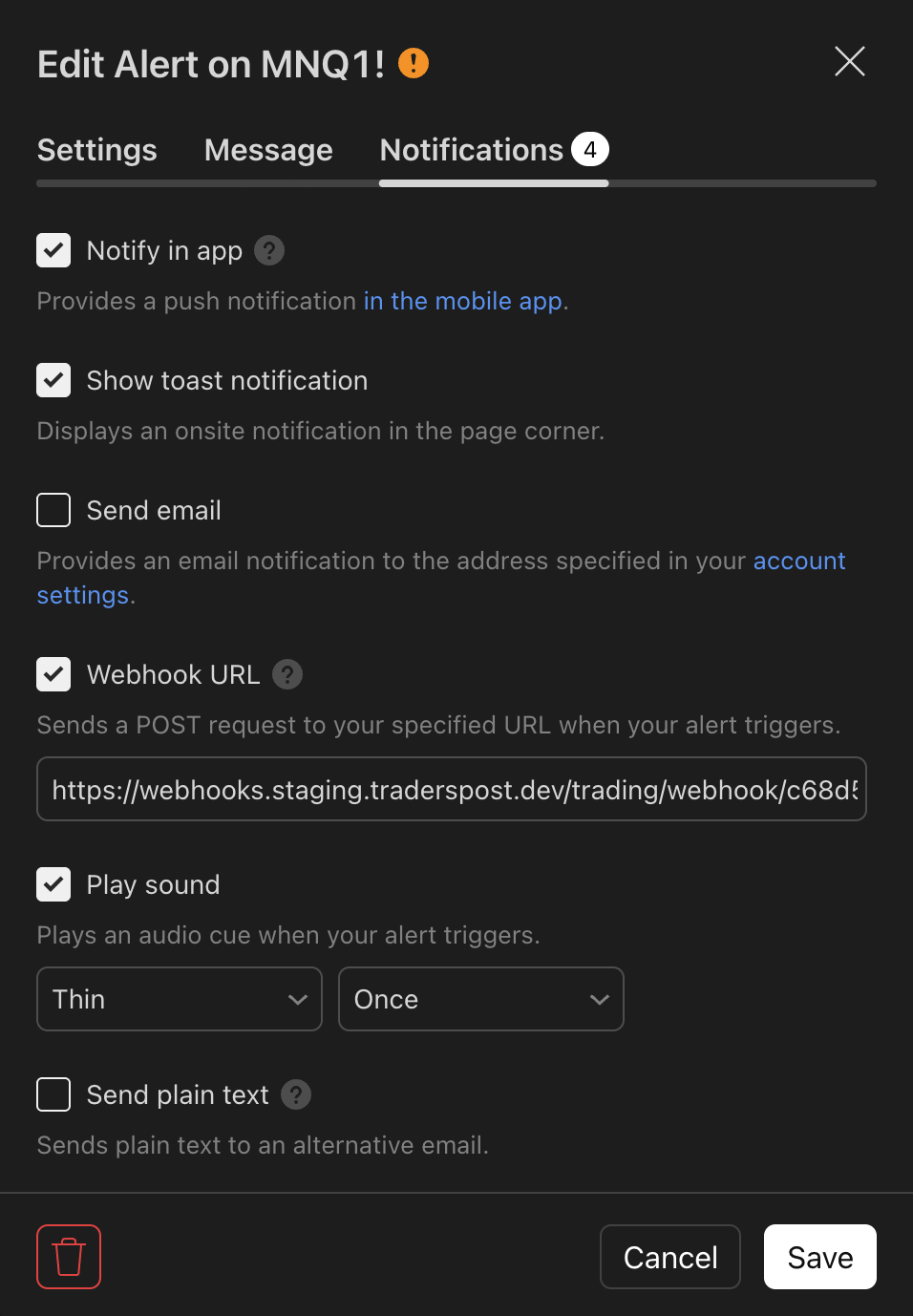
Finally, we'll paste that same webhook URL into the Notifications tab on our <mark style="background-color:red;">**sell**</mark> alert in the Webhook URL section.

<figure><img src="https://157925339-files.gitbook.io/~/files/v0/b/gitbook-x-prod.appspot.com/o/spaces%2FyFbMywdkChFyQlCR779Y%2Fuploads%2FnQXcnTuO0baLxRXI8LJT%2FScreenshot%202025-09-10%20at%2010.46.33%E2%80%AFPM.png?alt=media&#x26;token=a63a8700-b955-45d1-9cfa-af95c8f2751a" alt="" width="375"><figcaption></figcaption></figure>

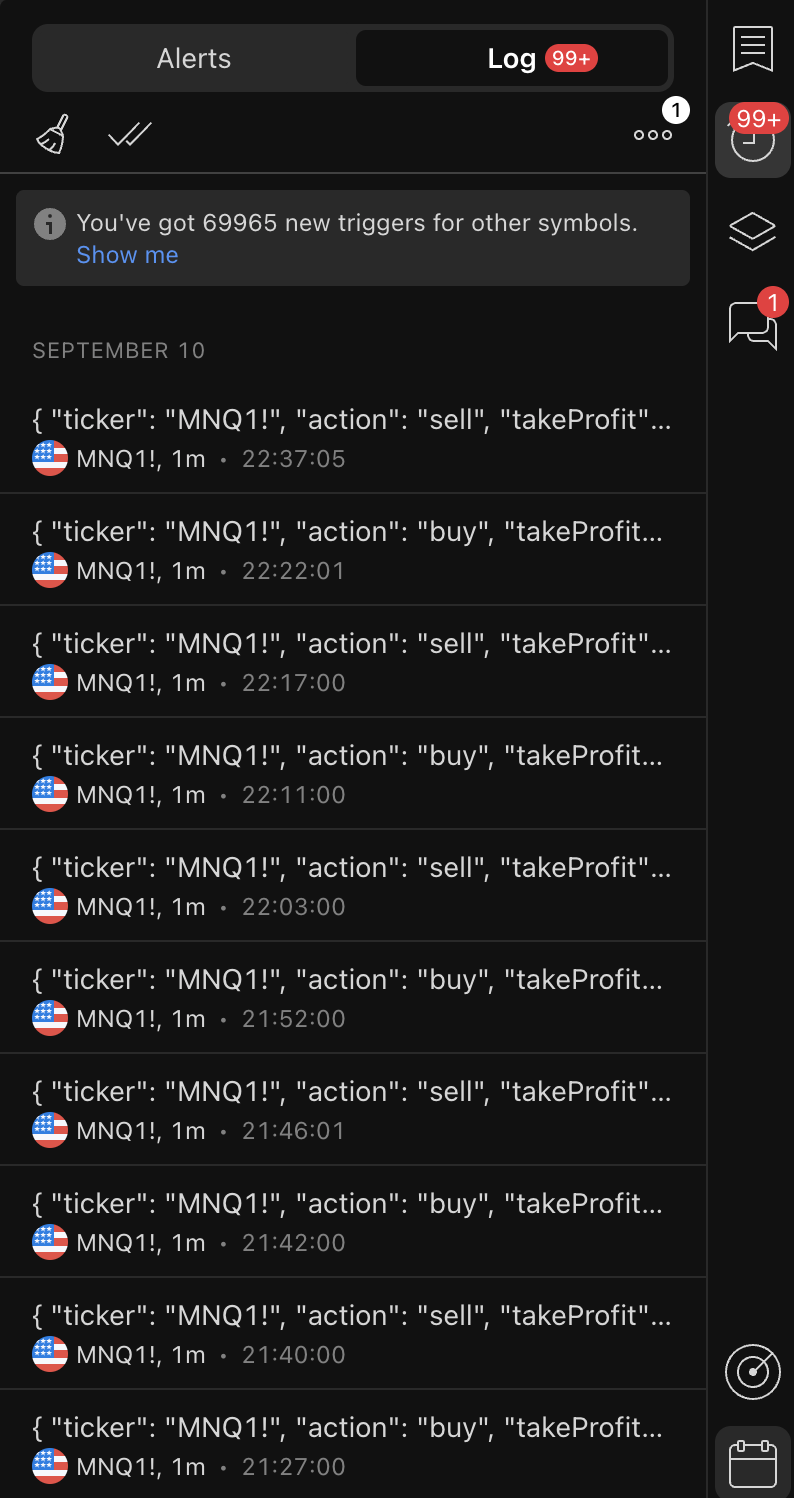
Once you've created both alerts, you'll start seeing the alerts populate your Tradingview Alert Log which can be accessed by clicking the "Log" tab on the top of the Tradingview Alert area.
<figure><img src="https://157925339-files.gitbook.io/~/files/v0/b/gitbook-x-prod.appspot.com/o/spaces%2FyFbMywdkChFyQlCR779Y%2Fuploads%2FAGEcT9JHJkO2yc89KdKk%2FScreenshot%202025-09-10%20at%2010.48.04%E2%80%AFPM.png?alt=media&#x26;token=dd28e6b9-16c6-4029-8250-5ace73285c7d" alt="" width="375"><figcaption></figcaption></figure>

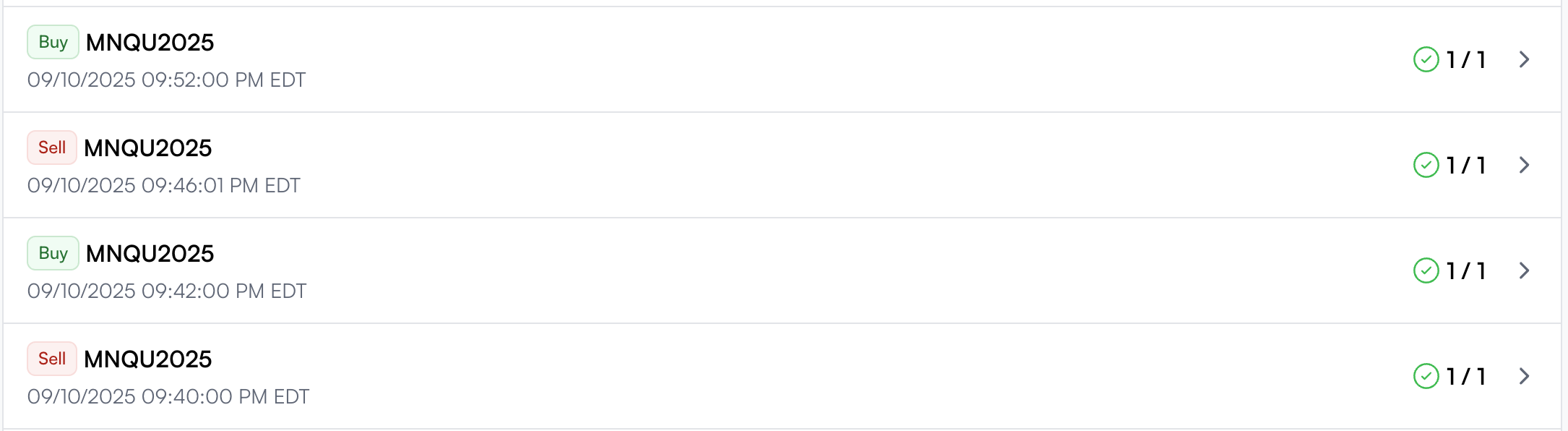
You'll also see your trades populate your signal list in the Strategy dashboard for your specific strategy in TradersPost.
<figure><img src="https://157925339-files.gitbook.io/~/files/v0/b/gitbook-x-prod.appspot.com/o/spaces%2FyFbMywdkChFyQlCR779Y%2Fuploads%2FheHGo4OYWqNATatkX679%2FScreenshot%202025-09-10%20at%2010.49.20%E2%80%AFPM.png?alt=media&#x26;token=d37196ae-1bad-4423-ab4c-09dea60a9bf0" alt=""><figcaption></figcaption></figure>

If you have questions or run into issues while creating alerts, JSON messages, or anything else related to TradersPost, you can contact us using the chat icon in the bottom right corner of your TradersPost Dashboard and we'll be glad to help!