The TradersPost Command Pad is a Chrome extension that lives alongside your charts for managing entries, exits, and risk across multiple accounts and strategies in stocks, futures (and futures prop firms), options, and crypto, with one-click execution and built-in risk controls for manual and discretionary traders.
Grab it from the chrome store below:
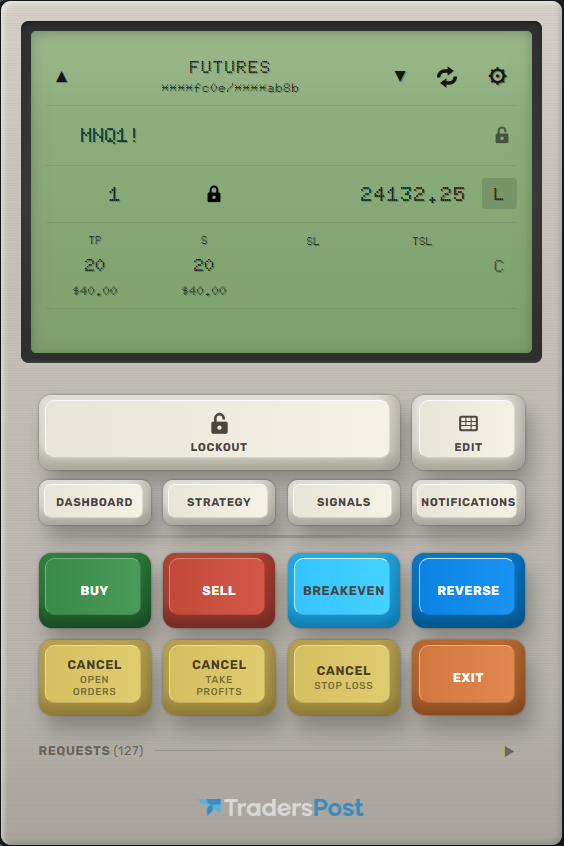
Command Pad gives you a fluent, always-accessible interface for managing entries, exits, and risk across all of your TradersPost strategies and subscriptions. It lives in Chrome's side panel so it stays open alongside your charts, and sends webhook signals directly to TradersPost with a single button press. Whether you trade stocks, futures, options, or crypto, Command Pad lets you define reusable signal templates, enforce session-based risk rules, and execute with precision, all without leaving your charting platform.
Main Purpose
The TradersPost Command Pad replaces the manual process of constructing and sending webhook signals to TradersPost. Instead of copying URLs, writing JSON, and pasting into an alert on TradingView, or in a tool like Postman or cURL, you get a visual command pad with pre-programmed buttons for every action you need:
- Buy / Sell -- open new long or short positions
- Add -- scale into an existing position
- Reverse -- flip from long to short or vice versa
- Breakeven -- move your stop to your entry price with a defined offset
- Cancel -- cancel open orders
- Exit -- close part or all of a position
Each button sends a fully-formed JSON payload to your TradersPost webhook, including the ticker, price, quantity, order type, take profit, stop loss, and any custom fields you define. The ticker and price are extracted live from your charting platform, so there is nothing to type in most cases -- just click.
The extension supports multi-strategy workflows. You can configure separate strategies for different accounts, asset classes, or trading systems, each with their own webhook URL, signal templates, risk rules, and session schedules. Switching between strategies is instant.
Quick Start
- Install Command Pad from the Chrome Web Store and open it in your browser's side panel.
- On TradersPost, head to Strategies and click on the Strategy you want to configure with Command Pad.
- In Command Pad, click the cog icon at the top right of the LCD screen to open settings.
- Under "AVAILABLE FROM TRADERSPOST", click the + next to your strategy. Command Pad will install the webhook URL and function buttons for you.

- Click Save Strategy, then experiment with sending signals and editing your buttons.
⚠️ Important: Disable your strategy in TradersPost while testing so signals don't accidentally send live trades to your broker.
LCD Screen
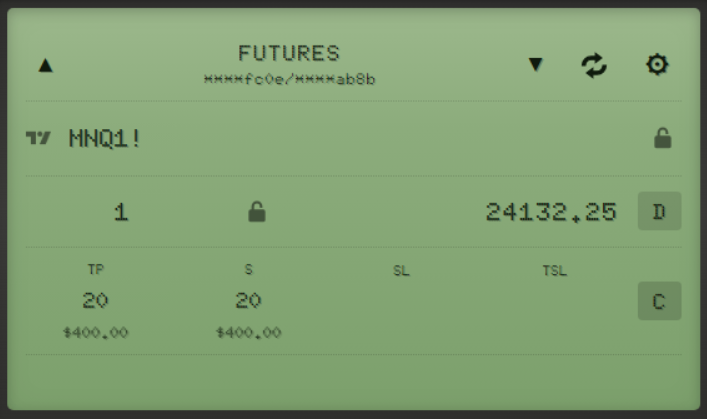
The top half of the extension is styled as a retro LCD (Liquid Crystal Display) panel that serves as the central control surface. It displays:
- Strategy row -- the active strategy name with Previous/Next arrows to cycle through strategies, and a settings gear icon.
- Webhook indicator -- a masked display of the active webhook URL so you can confirm which endpoint you're sending to without exposing the full URL.
- Ticker -- auto-populated from your charting platform, manually editable, with autocomplete from your signal history.
- Quantity (QTY) -- position size in shares, contracts, coins, or percent of equity depending on your sizing mode.
- Price -- the current market price, auto-extracted from your chart and refreshed every 250ms. When a signal is sent, the price is retrieved in real time from your charting source.
- Order Type -- a selector for Default, Market, Limit, Stop, Stop Limit, or Trailing Stop.
- Delta fields -- four inputs for risk and profit targets:
- TP (Take Profit) -- price delta or percentage above entry
- S (Stop Market) -- stop loss as a market order
- SL (Stop Limit) -- stop loss as a limit order
- TSL (Trailing Stop Loss) -- trailing stop amount or percentage
- Cancel toggle (C) -- controls whether open orders are canceled when a new signal is sent. Enabled by default.
- Risk labels -- calculated dollar amounts shown beneath each delta field in real time (e.g.,
$62.50for 1 MES contract with a 1.25 point stop). Uses per-symbol multipliers for 120+ futures contracts. - Session labels -- active session names with signal counts and lockout countdowns.
- Status bar -- displays confirmation messages, errors, and lockout timers with an LCD-style typewriter animation.
The LCD flashes red on errors so you never miss a rejected signal.
Live Ticker and Price Extraction
Command Pad automatically reads the ticker symbol and current price from your active charting platform tab. This happens via content scripts that run on supported sites and extract data from the page title or DOM elements every 250ms.
- Ticker lock -- click the lock icon next to the ticker to freeze it and prevent auto-updates when you switch tabs.
- Price lock -- freeze the price field to hold a specific value.
- Source lock -- click the source favicon (to the left of the ticker) to lock extraction to a specific tab. This locks both ticker and price to that source. If the locked tab is closed, the lock auto-releases.
The source favicon shows which platform the data is coming from. It is faded when not locked, and not faded when locked.
"The Buttons" - Signal Templates and the Keypad
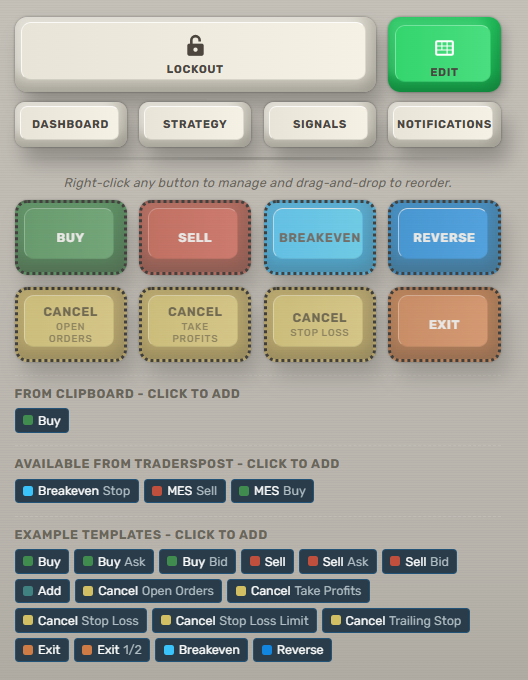
The lower half of the extension is a grid of signal buttons. Each button is a Signal Template (we just call them "buttons") -- a pre-configured JSON payload that gets sent to your TradersPost webhook when clicked.
Templates are fully customizable per strategy:
- Label and sublabel -- display text on the button (e.g., "Buy" / "1 MES")
- Color -- 14 predefined button colors mapped to actions (green for buy, red for sell, teal for add, etc.)
- Span -- column width from 1 to 4 for layout control
- JSON payload -- the full webhook body with placeholder support
Placeholders are replaced at send time:
{{ticker}}-- the current ticker from the LCD{{close}}or{{signalPrice}}-- the current price{{timenow}}or{{time}}-- ISO-8601 timestamp with time zone
Formula support — any JSON string value starting with = is evaluated as a formula before the signal is sent. Reference other payload fields with the signal. prefix, including nested objects such as signal.extras.ATR or signal.extras["ATR"]. For example, "=signal.quantity * 2" or "=round(signal.signalPrice * 1.01, 2)". Supports round, min, max, abs, floor, ceil, and the operators documented in Formulas.
Edit Keypad Mode (the EDIT button)
The green EDIT button in the top-right corner of the panel toggles Edit Keypad mode. This is the primary way to add, reorder, and manage buttons directly from the main panel without opening the full strategy editor.
While Edit Keypad mode is active:
- Clicking a keypad button no longer sends a signal -- buttons are "frozen" so you can manipulate them safely.
- The hint "Right-click any button to manage and drag-and-drop to reorder." appears above the keypad.
- Up to three click-to-add rows appear below the keypad, depending on what is available.
Click EDIT again (or refresh the panel) to exit edit mode and resume sending signals.
Reordering buttons -- in edit mode, drag any keypad button and drop it onto another button to swap their positions. The new order is saved automatically.
Right-click to manage a button -- right-clicking any keypad button (in or out of edit mode) opens an inline tooltip where you can edit the label, sublabel, color, span, and position, view and copy the full JSON payload, or delete the button. Deeper edits to the raw JSON, criteria mappings, etc. are still available in the strategy editor under the Templates tab.
Click to Add: Three Sources
While Edit Keypad mode is active, the extension surfaces buttons you can add to the keypad with a single click. Each chip shows the same label/color it will produce on the keypad, and clicking appends a new button to the end of the grid.
1. From Clipboard -- "FROM CLIPBOARD - CLICK TO ADD"
If your system clipboard contains a valid TradersPost-style JSON payload (must include ticker and action), a chip appears here so you can add it as a button in one click. The clipboard is re-read whenever the side panel regains focus, so you can copy a payload in another tab and switch back to drop it in. The ticker, time, and signal price fields are automatically normalized to placeholders ({{ticker}}, {{timenow}}, {{close}}) on add.
You can also paste JSON anywhere on the keypad with Ctrl+V / ⌘V at any time to create a button directly, with or without edit mode.
2. Available from TradersPost -- "AVAILABLE FROM TRADERSPOST - CLICK TO ADD"
If your active tab is a TradersPost strategy dashboard or ticker page, the extension scrapes the Saved Signal Templates from that page and lists them here. To populate this row:
- Open any strategy in TradersPost.
- Enter a ticker, build an order on the dashboard, and click Save Signal Template.
- Switch back to the Command Pad side panel while in Edit Keypad mode -- the saved templates appear as click-to-add chips.
This is the fastest way to mirror your TradersPost-side templates onto the keypad without copying JSON by hand.
3. Example Templates -- "EXAMPLE TEMPLATES - CLICK TO ADD"
A built-in library of pre-made starter buttons is always shown in edit mode: Buy, Buy Ask, Buy Bid, Sell, Sell Ask, Sell Bid, Add, Cancel Open Orders, Cancel Take Profits, Cancel Stop Loss, Cancel Stop Loss Limit, Cancel Trailing Stop, Exit, Exit 1/2, Breakeven, and Reverse. Click any chip to drop it onto the keypad. Colors are auto-assigned from the underlying action (buy = green, sell = red, etc.) and labels are split into label/sublabel automatically.
New strategies are seeded with Buy / Sell / Cancel / Exit out of the box, so the Example Templates row is the place to expand from there.
Order Types
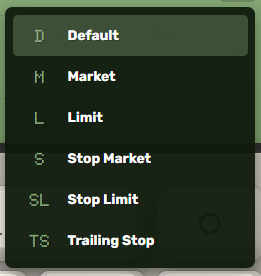
Six order types are available from the LCD panel:
D - Default
No explicit order type sent; uses the subscription default order type.
M - Market
Sends orderType: "market" along with the signalPrice.
L - Limit
Sends orderType: "limit" with the LCD price as limitPric
S - Stop
Sends orderType: "stop" with the LCD price as stopPrice
SL - Stop Limit
Sends orderType: "stop_limit" with both stopPrice and limitPrice defined by the LCD price
TS - Trailing Stop
Sends orderType: "trailing_stop" with the configured trail amount
The order type button supports arrow key cycling and keyboard shortcut codes for fast switching.
Entry and Exit Criteria
Criteria are configurable validation gates that must be filled in before a signal can be sent. They help enforce discipline by requiring you to acknowledge your setup before entering or exiting a trade.
Each strategy supports up to 20 entry criteria and 20 exit criteria. Each criterion can be:
- Toggle buttons -- a set of labeled choices (e.g., "Setup Score: 1, 2, 3, 4, 5")
- Text inputs -- free-form fields with placeholder text
Criteria can be marked as required, which blocks the signal until all required fields are filled. Missing fields are highlighted in red with an error message listing what's missing.
Criteria values are included in the webhook payload under the extras object, so your downstream systems can use them for logging or decision-making.
Each criterion is configured to apply to specific actions (buy, sell, add, reverse, exit, cancel, breakeven), so you can require different inputs for entries vs. exits.
Function Buttons
Function buttons (FN buttons) are quick-access links that appear above the signal keypad. They open URLs in new or existing tabs and are useful for jumping to your TradersPost dashboard, broker platform, or any tool you use alongside trading.
Each strategy has its own set of function buttons with:
- Label -- button display text
- URL -- any HTTP/HTTPS link
- Refresh behavior -- when enabled (default), clicking the button refreshes the tab if it's already open, or creates a new tab if it isn't. Shift+click toggles this per-button.
Function buttons are reorderable via drag-and-drop in the strategy editor.
Lockout and Risk Management
Command Pad provides three layers of protection against overtrading and impulsive entries:
1. Global Lockout (Manual)
A manual cooldown timer you activate when you need to step away from the screen. Set a duration (up to 24 hours) and all buttons are blocked for that period. Be sure to cancel and exit all positions before enabling the global lockout as it blocks all buttons and all strategies. The timer persists across page reloads and browser restarts.
2. Session Max Signals
Each session can set a maximum number of entry signals (buy, sell, add). Once the limit is reached, further entries are blocked until the session window ends. The signal count is displayed in the session label on the LCD.
3. Auto Lockout
Sessions can trigger an automatic cooldown after any matching signal action. For example, after every buy, automatically lock out for 5 minutes. The lockout duration is capped to the remaining session time so it never extends past your trading window.
Sessions
Sessions are time-based trading windows that control when you're allowed to trade. Each session defines:
- Name -- displayed on the LCD when active
- Asset class -- Futures, Stocks, Options, or Crypto (filters which strategies can be assigned)
- Time window -- start and end times with AM/PM, supports ranges that span midnight. This is in your computer's local time zone.
- Days -- which days of the week the session is active (Mon-Fri checkboxes)
- Assigned strategies -- which strategies are governed by this session
- Max signals -- maximum entry signals allowed per session window (0 = unlimited)
- Allowed ticker prefixes -- comma-separated prefixes (e.g.,
MES, MNQ) that restrict which tickers can be traded. Uses prefix matching soMESallowsMESM2026andBTCmatchesBTCUSD. - Auto lockout -- cooldown duration and which actions trigger it
If a strategy has sessions assigned but none are currently active, entry signals are blocked with an OUTSIDE SESSION WINDOW error. Strategies with no sessions remain unrestricted.
You can create up to 4 sessions, and they are global (shared across all strategies). Session state is stored locally and survives page reloads.
Strategy Management
A strategy represents a complete trading configuration:
- Name -- display name shown on the LCD
- Webhook URL -- your TradersPost webhook endpoint
- Relay URL -- optional proxy endpoint (must be HTTPS or localhost) for logging or processing signals before they reach TradersPost
- Dashboard URL -- TradersPost strategy dashboard for auto-refresh after signals
- Asset class -- Futures, Stocks, Options, or Crypto
- Sizing mode -- Fixed or Percent of Equity
- Signal templates -- your keypad button configurations
- Function buttons -- quick-access URL shortcuts
- Entry/exit criteria -- validation gates
- Reset rules -- which fields reset after a successful signal (price, criteria, quantity, etc.) or press of the refresh button
- Sessions -- assigned time-based trading windows
You can add, clone, and delete strategies from the settings panel. Cloning deep-copies all templates, buttons, and criteria. The extension can also detect strategies from your TradersPost account page and offer them as one-click imports.
All strategy data is stored in Chrome's localStorage and can be exported/imported as JSON for backup.
Warning: Treat exports like credentials. They include your webhook and dashboard URLs, and anyone with those URLs can send live signals to your TradersPost account.
Sizing Modes
Each strategy can operate in one of two sizing modes:
Fixed Quantity & Amount (default)
- QTY = number of shares, contracts, or coins
- TP/S/SL/TSL = absolute price deltas from entry
- Risk labels calculated as
qty x delta(x multiplier for futures)
Percent of Equity & Price
- QTY = percentage of trading account equity
- TP/S/SL/TSL = percentage from fill price
- Adds
quantityType: "percent_of_equity"to the payload - Risk labels hidden (equity amount is unknown)
- Not available for futures strategies
Switching modes clears delta inputs to prevent stale values from carrying over.
Request Log and Analytics
Every webhook signal is logged with full details:
- Timestamp, strategy name, action, ticker, status code
- Full request body and response body (expandable)
- Response time from your computer to TradersPost
The stats dashboard tracks lifetime metrics:
- Total requests, success/invalid/failed counts
- Breakdown by action type (buy, sell, add, etc.)
- Per-strategy statistics
The log retains the last 100 entries and is accessible from the requests panel at the bottom of the extension.
Supported Platforms
Command Pad extracts live ticker and price data from these charting platforms:
| Platform | Extraction Method |
|---|---|
| TradingView | Page title parsing |
| Tradovate | DOM element extraction |
| TastyTrade | Multiple DOM selector fallbacks |
| TrendSpider | Multiple DOM selector fallbacks |
| TopStep / TopStepX | Page title parsing |
| Coinbase | Page title parsing |
| Kraken Pro | Page title parsing |
The extension also connects to the TradersPost app for strategy import, signal template, and webhook URL detection.