Difference between the “List of Trades” and what happened at broker - starting at alert log to see what’s happening in indicator/strategy
When something goes wrong with an automated trade, or doesn't execute the way you expected, it's tempting to open your TradingView strategy and compare the List of Trades to what happened at your broker. This is a natural instinct, but it's the wrong place to look. It doesn't log what alerts fired. The Strategy Tester (List of Trades) only shows theoretical trade results based on backtesting logic. It has no record of which alerts were actually triggered.
The Alert Log is the authoritative record of what your strategy actually did in real time. Every time an alert fires, TradingView writes an entry to the Alert Log with a timestamp and the exact message that was sent.
When TradersPost receives a webhook from TradingView, it is receiving the payload from one of those alert log entries. This means the Alert Log and your TradersPost trade history should correspond directly, with one alert entry per trade signal.
The Alert Log is located in the Alerts panel at the bottom of your TradingView chart. {% endhint %}
SCREENSHOT
- Open TradingView and go to the chart where your strategy and alerts are configured.
- At the bottom of the chart, click the Alerts tab to open the alerts panel.
- In the alerts panel, click Alert Log (or Log) to see a timestamped history of all fired alerts.
What's the best way to figure out why your broker's trades aren't "right"? Compare your alert log to the trades that are shown on your actual chart.
- Do the times match up?
- Do the prices match up?
If not, you may have a coding issue. But when you reach out to us, please include a screenshot of your entire chart (NOT the List of Trades) as well as your Alert Log.
Bracket orders in p/l value vs difference in market price
Market Price Offset (Take profit amount, Stop loss amount)
A Market Price Offset is a fixed price distance from your entry price. This value is applied directly to the instrument's quoted price, including any decimal increments required by its tick size.
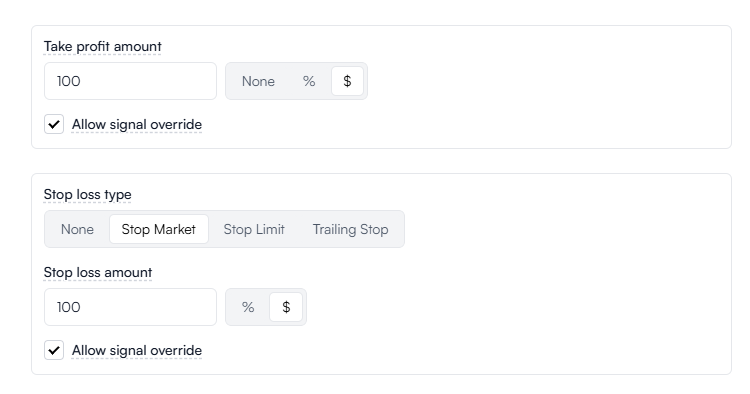
Example
If you enter MNQ at 25,125.25 and set:
- Take profit offset: 100
- Stop loss offset: 100
Your bracket orders will be placed at:
- Take profit: 25,225.25
- Stop loss: 25,025.25
This 100 represents a price movement, not a P&L amount.
Your actual profit or loss will depend on:
- Contract size
- Number of contracts traded
- The instrument's dollar value per point
TradersPost does not use a separate "points" concept internally. All futures brackets are calculated using market price offsets.
Market Price Percentage Offset (Take profit percent, Stop loss percent)
A Market Price Percentage Offset places your bracket at a percentage distance from entry.
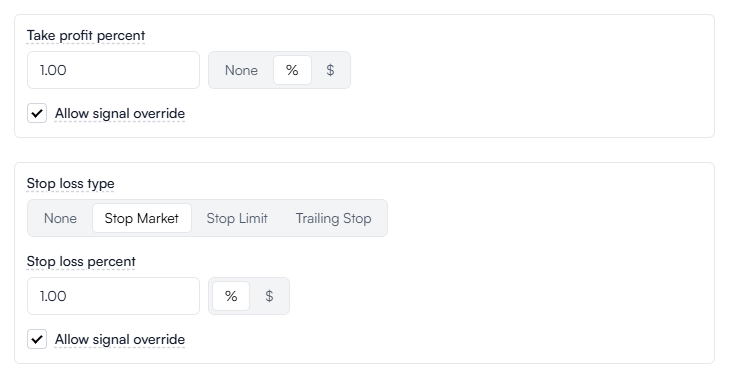
Example
If you enter at 25,000 and set:
- Take profit: 1.00 percent
- Stop loss: 1.00 percent
1 percent of 25,000 is:
25,000 × 0.01 = 250
Your bracket orders will be placed at:
- Take profit: 25,250
- Stop loss: 24,750
These levels are calculated directly from the entry price, not from profit or loss in dollar terms.
Your actual P&L will depend on:
- The contract's dollar value per point
- The number of contracts traded
The percentage offset only determines how far the bracket is placed from entry in price terms.
Contract rolling
Simply put, do not use continuous symbols with TradersPost. What does this mean? If you use the {{ticker}} variable Tradingview will send over "NQ1!" to us if you are trading on the continuous symbol. It is then up to TradersPost to decide based on the CME calendar the current symbol to send to your broker. There are often mismatches between TradersPost and charting platforms such as TradingView, especially around roll periods, where each platform may reference a different underlying contract.
This mismatch can result in orders being sent to an unexpected contract and cause unnecessary confusion or execution issues. Until we introduce a more robust contract resolution process, we strongly recommend always sending explicit contract symbols instead of continuous symbols.
{
  "ticker": "GC1!", //NOT RECOMMENDED
  "action": "buy"
}
We recommend sending the hard-coded symbol instead:
{
  "ticker": "GCJ2025", // RECOMMENDED
  "action": "buy"
}
Please see our Blog Post on our recommendations for trading continuous futures on TradingView.
TradersPost currently rolls futures contracts based on expiration dates, not volume. We switch from the current contract to the next contract two days before the contract’s expiration date.
Because this is not a volume-based rollover, there are times when charting platforms like TradingView may identify a different front month contract than TradersPost. In some cases, TradingView may already be pointing several months ahead while TradersPost is still referencing the next expiring contract.
For example, MNQZ2023 expires on Friday, December 15, 2023. On TradersPost, the continuous symbol MNQ1! rolls to MNQH2024 at the start of December 13, 2023.
Determining the Continuous Futures Contract Symbol #
You can see the contract rollovers planned by TradingView using the Continuous contract switch event. On TradingView charts, head to Settings, click Events, and turn on "Continuous contract switch".
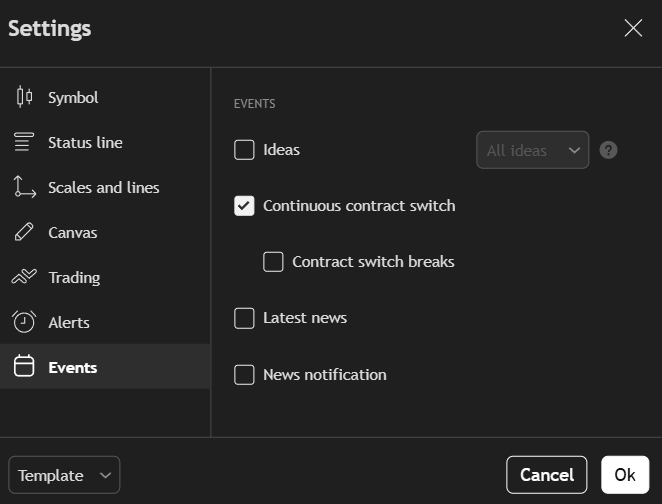
This will now show you an event at the bottom of the chart with a purple arrow that indicates when the contract rollover will take place and what ticker it will change from and to. You can use this to hard-code your alerts on the day of a rollover.
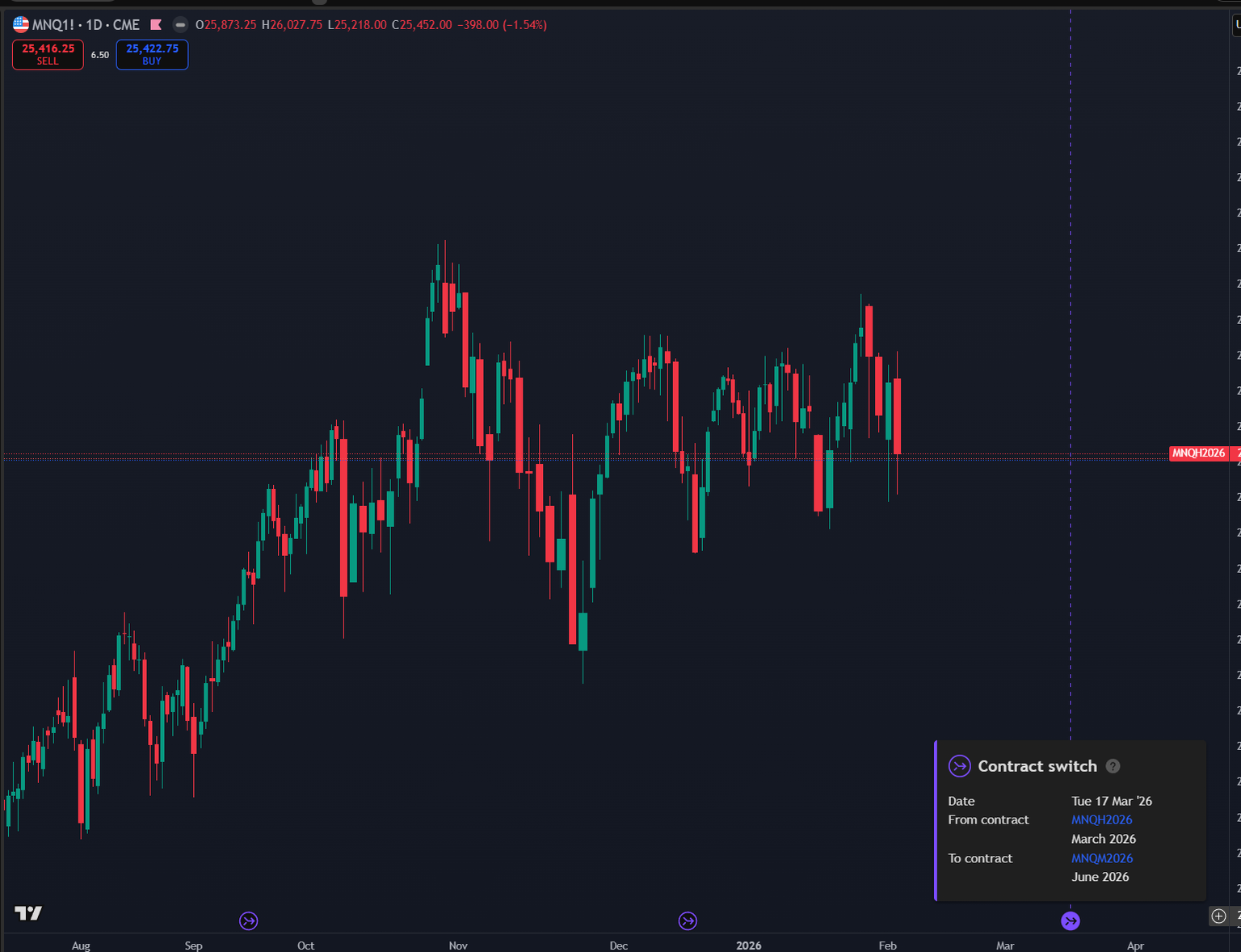
TradingView has also added the variable syminfo.current_contract to Pine Script. This would return the underlying contract for the current symbol if it is a continuous futures contract (na otherwise).
Trailing stop in exit order type instead of attaching to entry
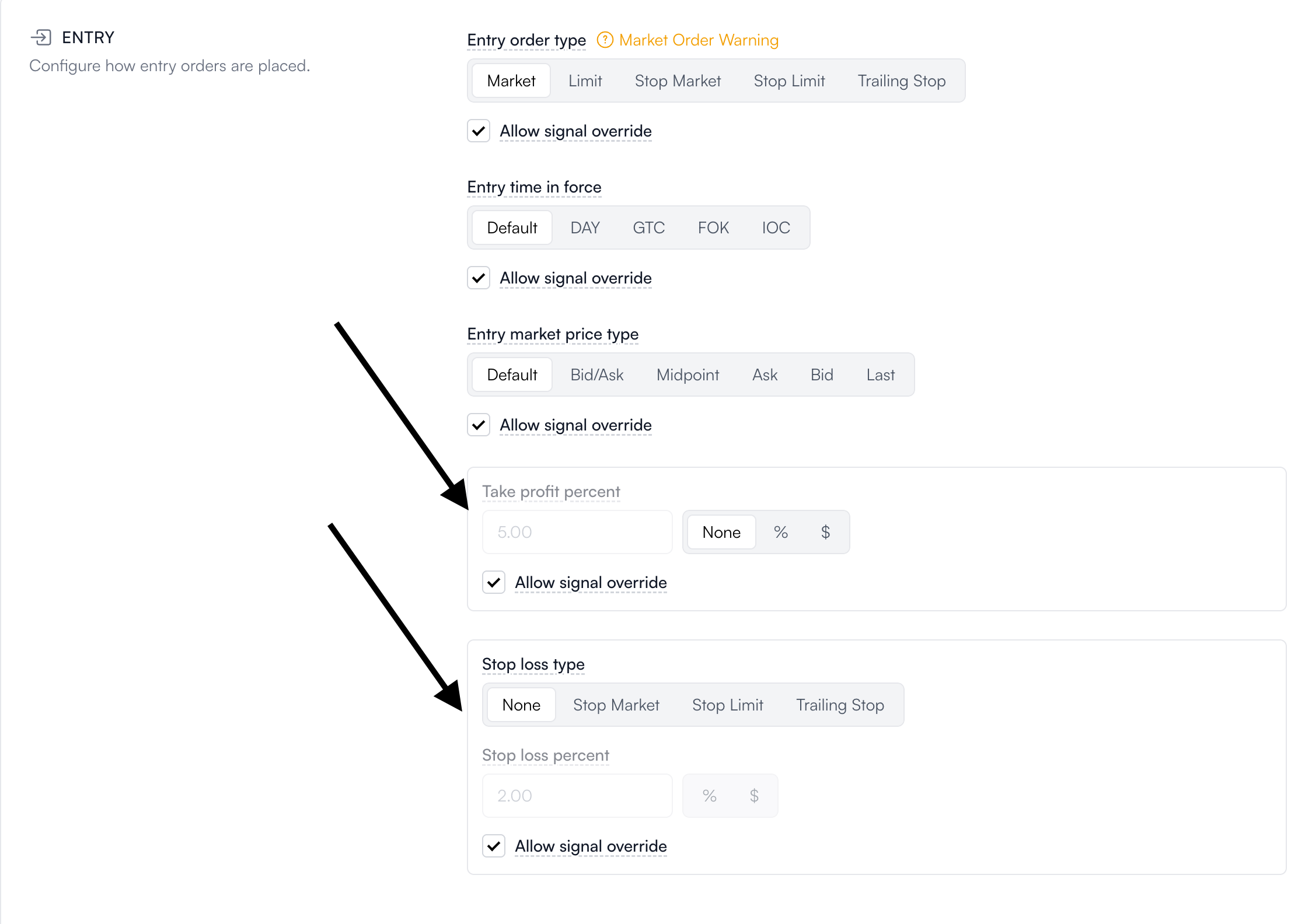
If you would like to add a bracket order to your entry (like a stop loss / take profit / trailing stop) you'll want to add them in the take profit and/or stop loss areas. You will not select "Stop Market / Stop Limit / Trailing Stop" under entry order type unless you literally want your entry order to be that specific order type. If you want a traditional "bracket" (most people do), you'll select Market or Limit under entry order type and then add a take profit and/or stop loss in the areas pointed out below.
Flat + buy/sell coming in at the same time to side swap - race conditions
Need to find example
Can I move my stop to breakeven?
It's not possible to update your broker side stop loss without first sending a "cancel" signal and then a new stop loss signal. You cannot send a signal that will "update" a stop loss.
There isn't a native way to exit orders at a specific time of the day if you need all positions closed (most of these questions come from prop firm traders).
The only option is to send a scheduled alert (like via our Tradingview indicator).
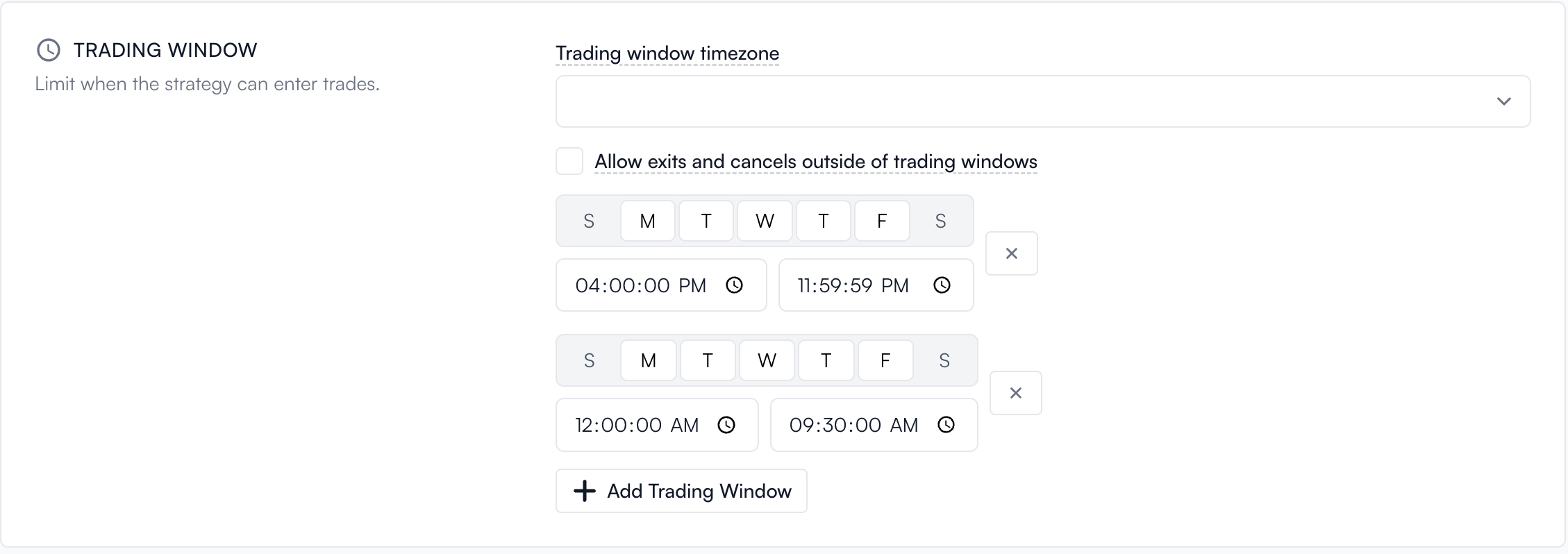
If you add a trading window to your subscription and want to have a window that crosses into the next day, you have to have two windows, the first ending at 11:59:59pm and the second starting at 12:00:00am. See the below screenshot.
Why a flat trade with no open position “rejects”
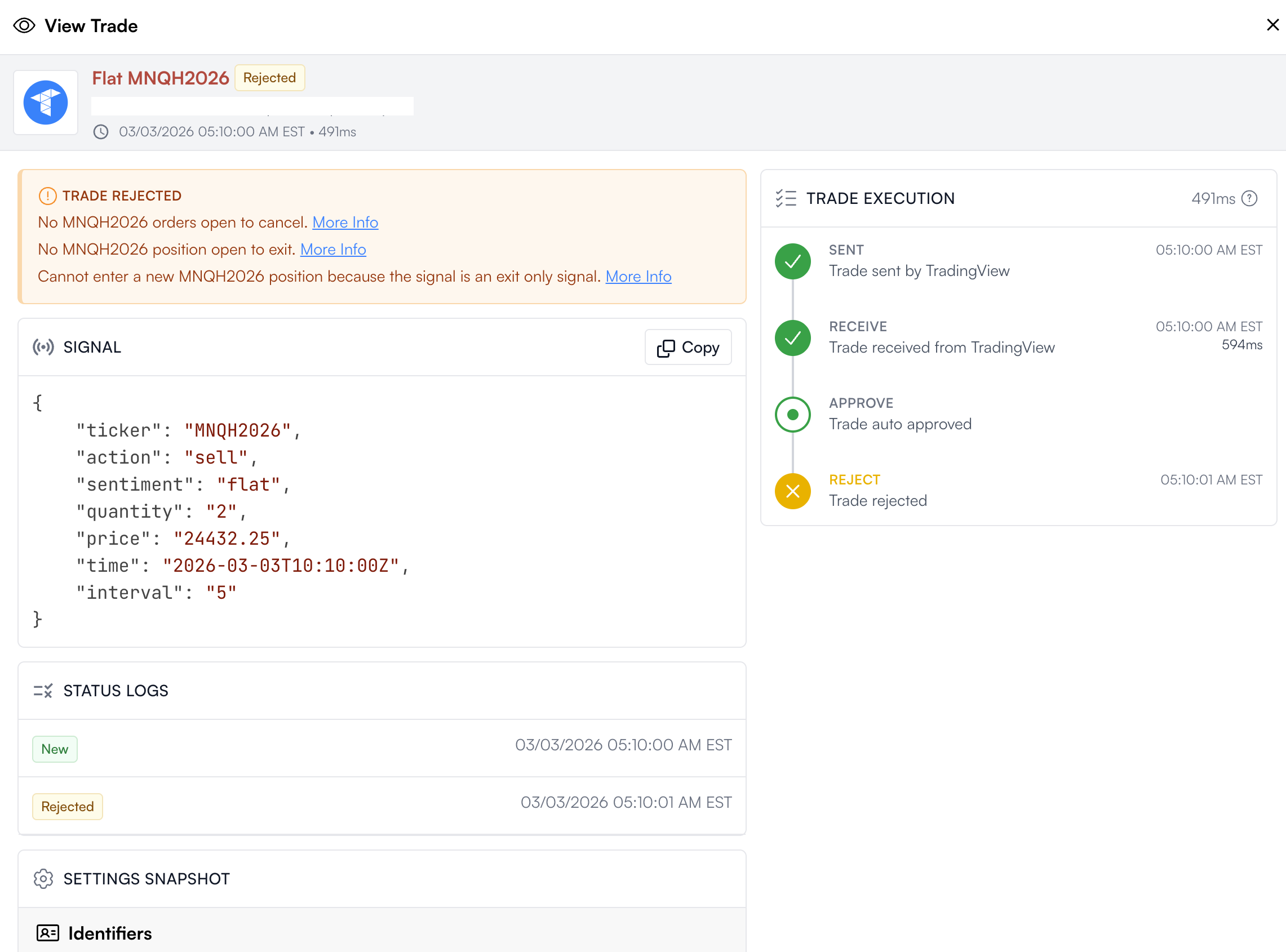
If you don't have an open position and send an exiting trade (a trade with the sentiment as flat) your trade will reject. This is not an error this is a safeguard by our platform. If you are confused by this message, compare your chart to your alert log to see why you wouldn't be in a trade at this time if you expected to be.
How to drill down through interface to see all information on signal/trade
Our interface is the same across many pages (signals, trades, etc.). If you hover your mouse over an entry in a list and the background changes to grey, you can click it!
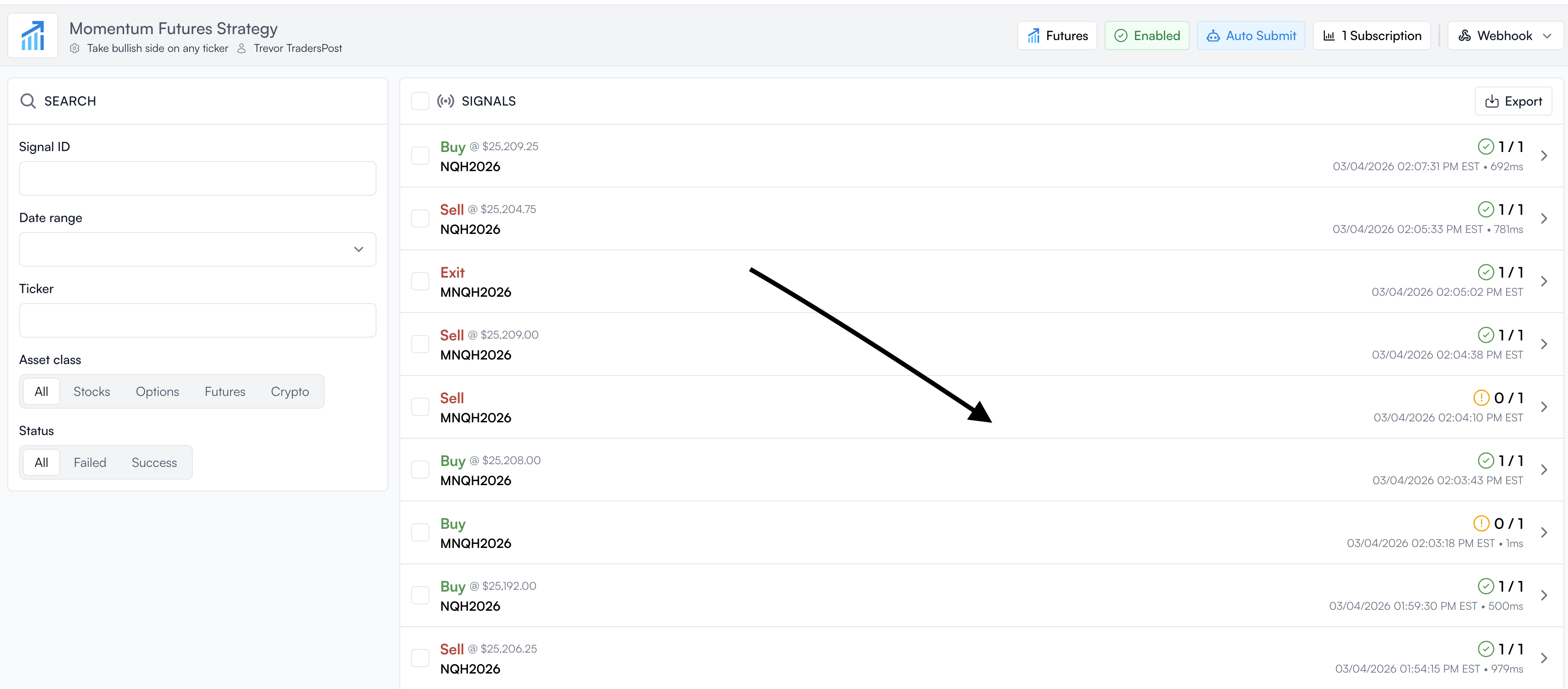
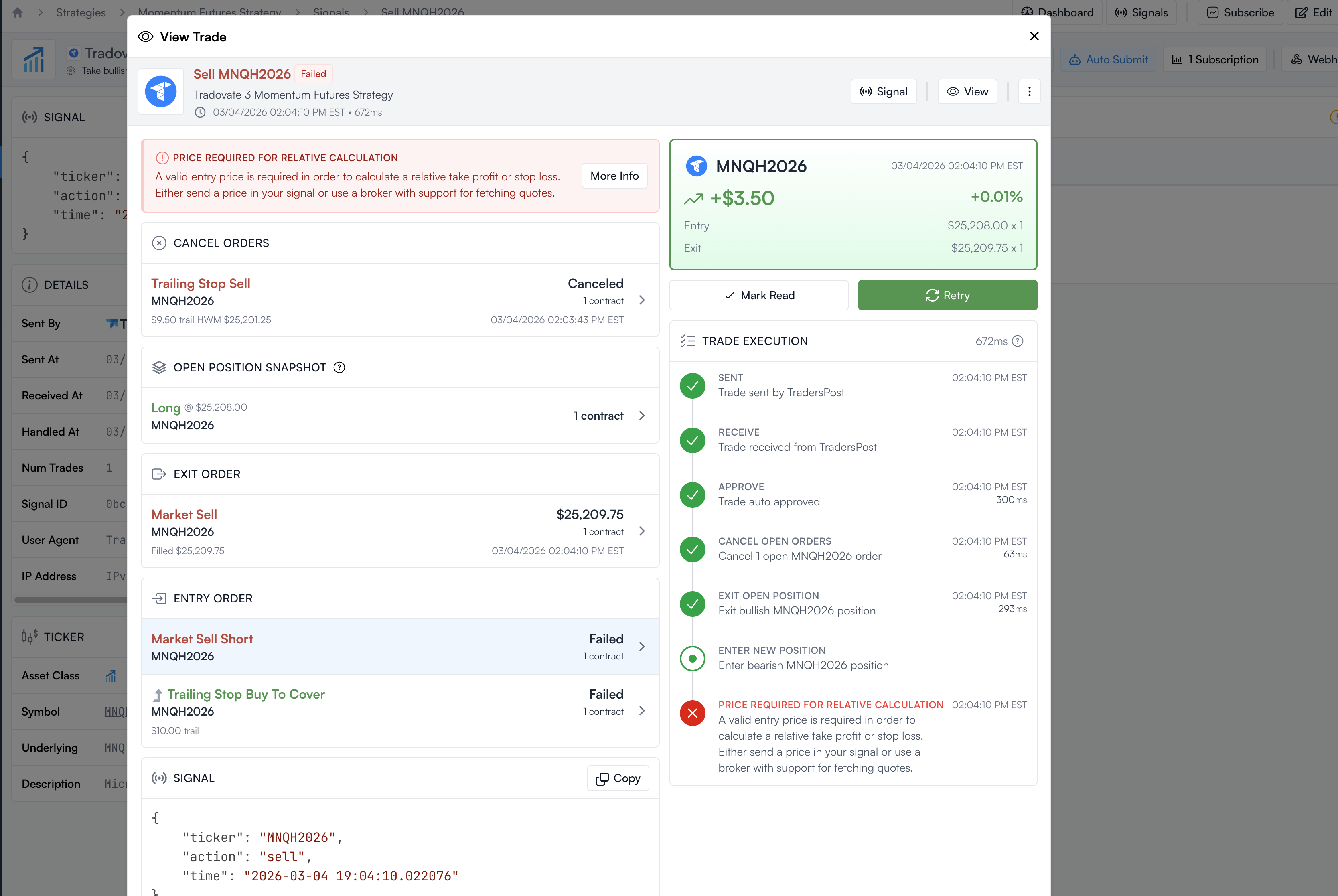
On the next page, you can see the list of subscribers. Under any trade header (completed, failed, rejected) you can click again to drill down further.
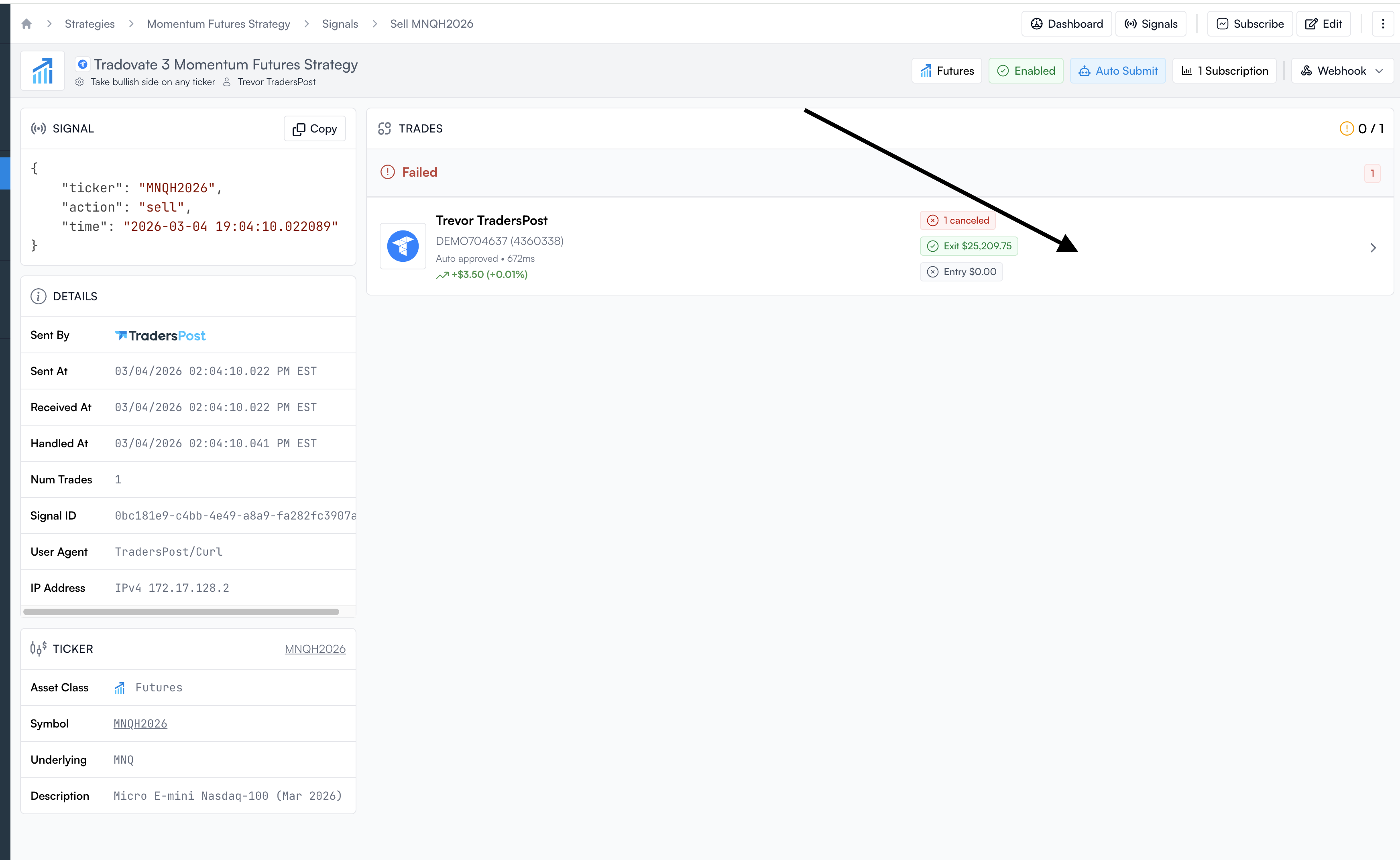
Now we can see the exact reason why this trade failed.
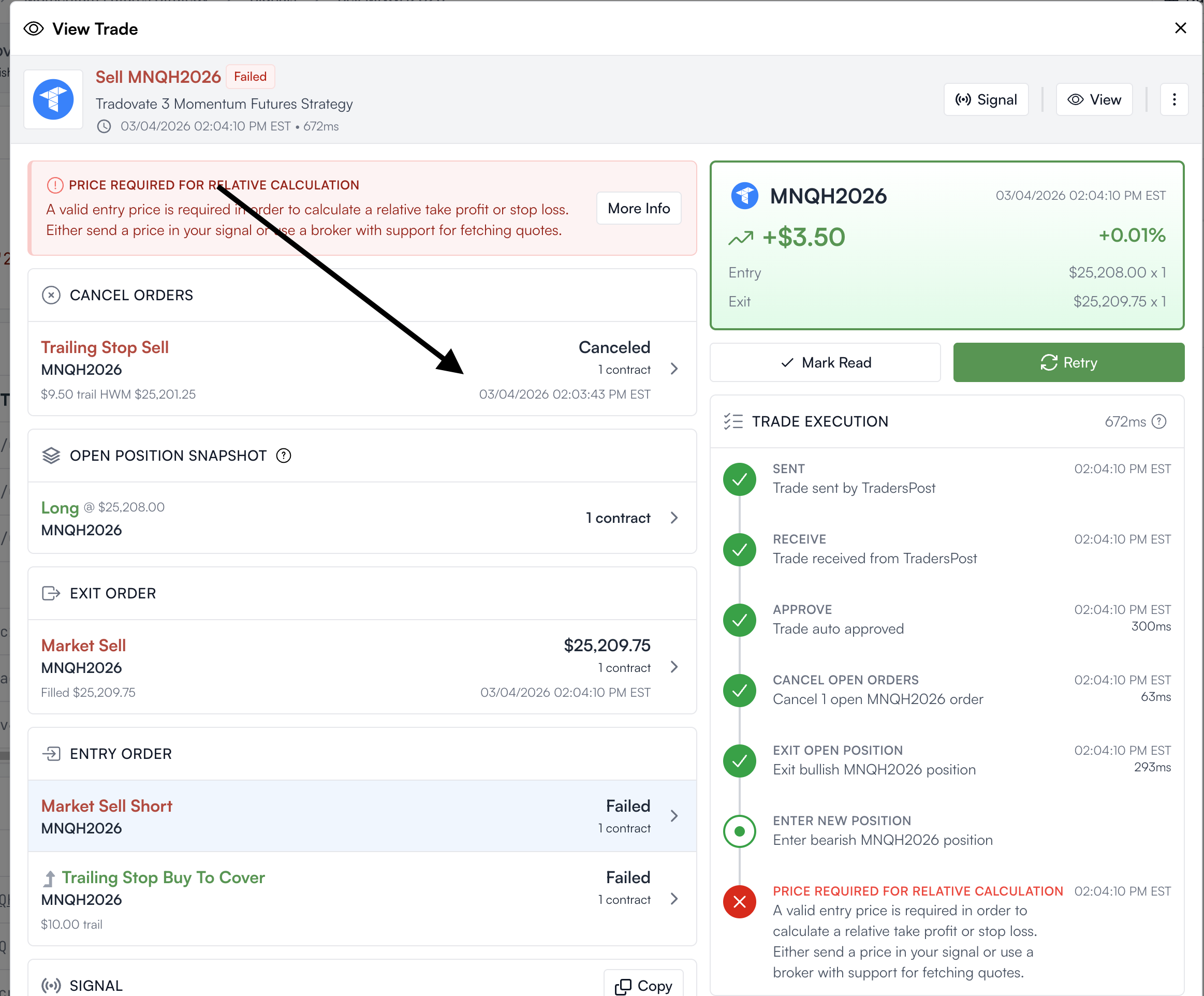
And if we want to see why that Trailing Stop was cancelled, click again.
Now we can see the submission time as well as the update/cancel time. This is key for investigating when the trade was cancelled. Most likely, it was the next signal that came into your strategy that cancelled this open order.
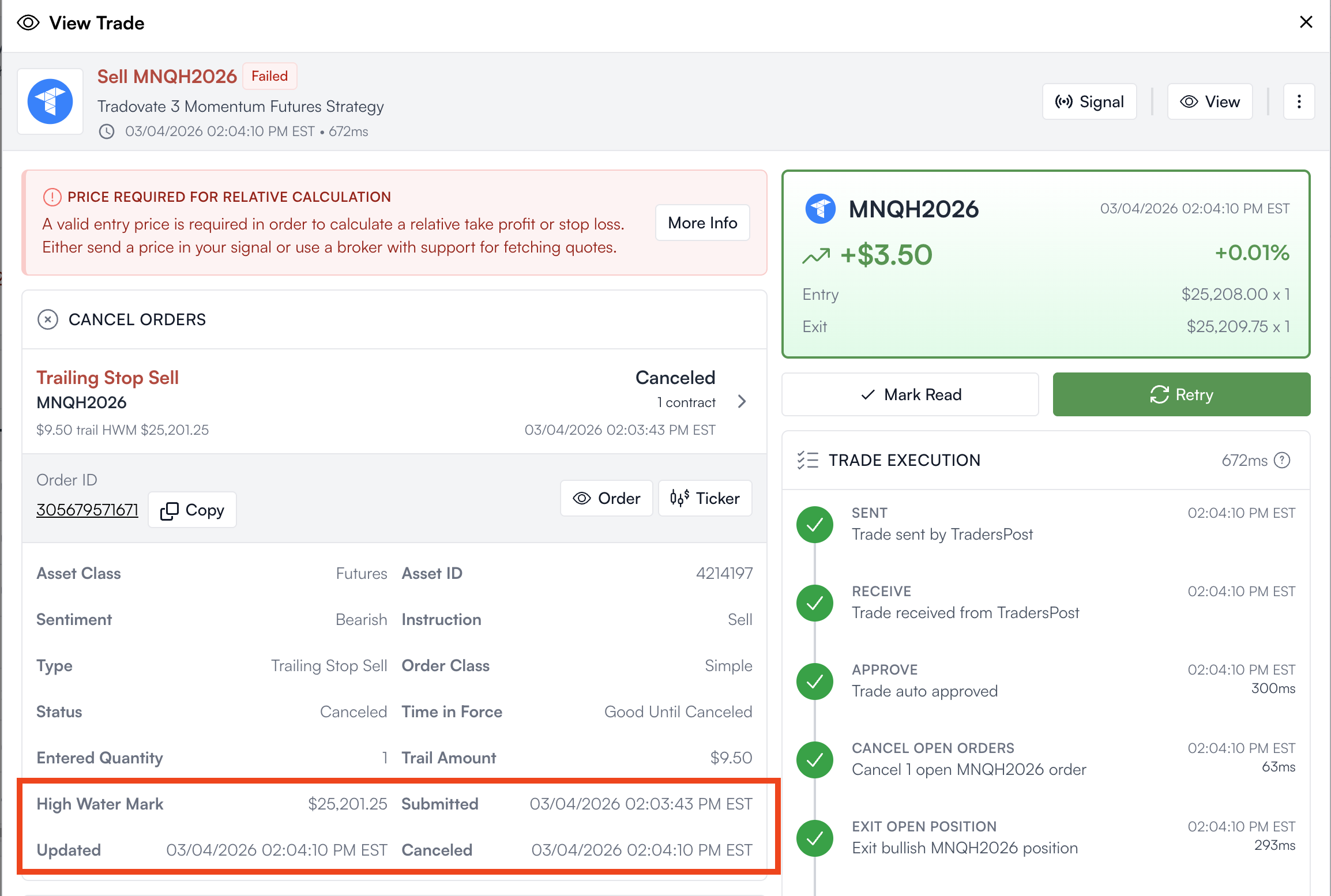
99.9% of the time if you see a bracket that says "cancelled", just click that open order to see the submitted and cancelled times. Compare the cancelled time to your next signal.